The GY-HM650 uploads completed SD-card video clips to any configured FTP, SFTP, implicit FTPS, or explicit FTPES server. A supported Wi-Fi, Ethernet, or cellular adapter connects through the rear HOST USB port; the camera can upload from its thumbnail screen or from its browser interface.
Menu path: Rear HOST terminal > Main Menu > System > Network > Main Menu > System > Network/Settings > Connection Setup > Wizard > Main Menu > System > Network/Settings > Clip Server > Media mode > thumbnail > LOLUX/3 > FTP Upload > Web browser > Clip List > Upload. Protocols: FTP · SFTP · FTPS implicit · FTPES explicit. Sends: recorded video clips on SD media.
Documented from the manufacturer manual. Sources reviewed .
TransportWi-Fi adapter through HOST USB + Ethernet adapter through HOST USB + cellular modem through HOST USB
Payloadrecorded video clips on SD media
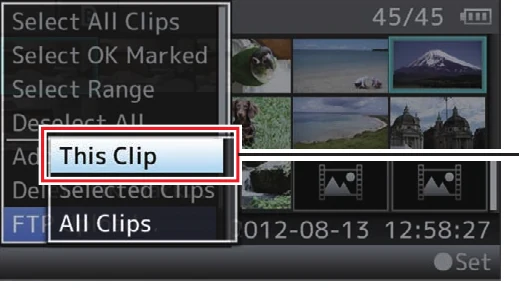
Triggersmanual clip upload from thumbnail view / selected or all-clip upload / browser-triggered clip upload
Before you touch the menu
What to gather
01Current GY-HM650 firmware.
02A JVC-supported USB Wi-Fi, wired-LAN, or cellular adapter for the intended transport.
03A recorded test clip on supported SD media.
04Camera to Anywhere hostname, protocol, port, username, password, and remote directory.
05The known server public-key or certificate fingerprint for the first SFTP/FTPS/FTPES connection.
Connection fields
Alias
A short recognizable name such as C2A-Event-A.
This is the destination name shown in the FTP Upload action screen.
Protocol
FTP, SFTP, FTPS for implicit TLS, or FTPES for explicit TLS.
Must exactly match the Camera to Anywhere listener.
Server
The hostname or IP address only, up to the camera's documented 127-character limit.
Identifies the upload server.
Port
The issued port; documented defaults are FTP 21, SFTP 22, FTPS 990, and FTPES 21.
Connects to the correct protocol listener.
Dir. Path
The assigned remote directory such as /event/source.
Routes clips to the correct input.
Username
The per-camera/source username, within the documented 31-character limit.
Authenticates and identifies the source.
Password
The issued password, within the documented 31-character limit.
Completes endpoint authentication.
PASV Mode
On for ordinary FTP/FTPS/FTPES behind NAT; it is unavailable for SFTP.
Uses a firewall-friendly passive FTP data connection.
The menu, step by step
01
Rear HOST terminal
With power off, connect the supported network adapter, then power on.
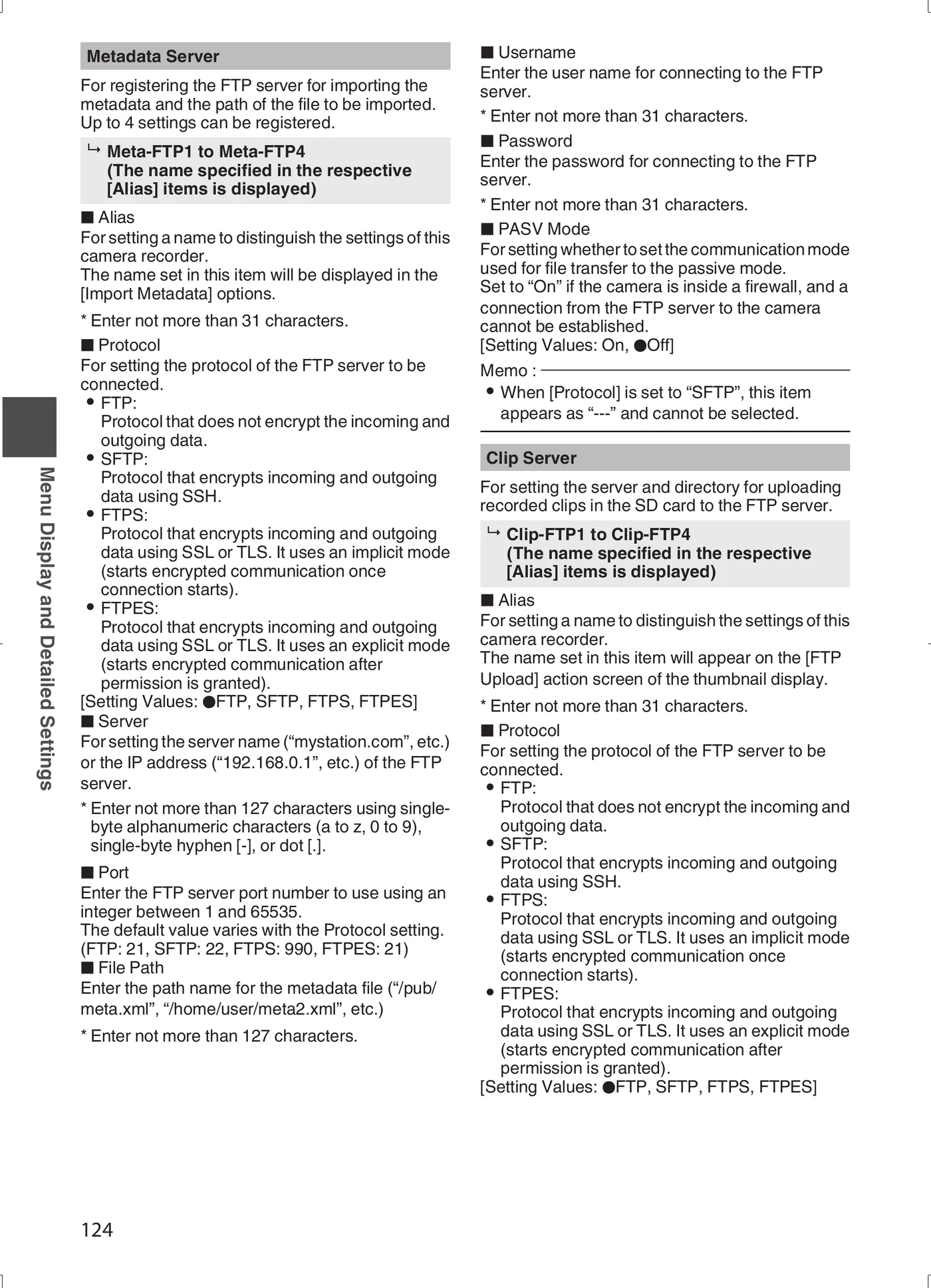
MANUFACTURER MANUAL EXCERPT · 1/1
Reviewed menu evidence for GY-HM650 from the archived manual, page 124.
Browser upload of all, OK-marked, or selected clips
Background continuation after switching back to Camera mode
Media behavior
The upload unit is a completed recorded clip on SD media, not a live camera feed.
All playable clips visible in the active thumbnail context can be selected.
Upload progress is shown by a bar; the transfer can be stopped from the upload screen.
The camera can return to Camera mode and shoot while an existing upload continues.
A duplicate remote filename prompts for overwrite unless an HTTP FTP proxy suppresses the prompt.
Limits and warnings
A supported USB network adapter is required for every transport.
The manual does not document automatic upload-after-record or chunked upload for this model.
Secure protocols prompt for server fingerprint validation; production staff need the expected value in advance.
An HTTP FTP proxy permits only FTP and can overwrite a duplicate without the normal confirmation.
This manual revision does not document resume; plan a full re-upload after interruption.
Prove it on your body
Run this checklist on the exact body, firmware, network, and media format you will use on assignment.
Use the current firmware and JVC's current supported-adapter list. FTP resume is unavailable when SFTP is selected. Physical Camera to Anywhere interoperability is not yet lab-verified.
01Network status shows an IP address.
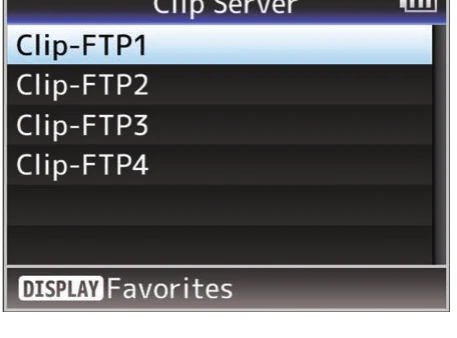
02Clip Server alias contains the intended host, port, protocol, and path.
03The displayed secure-protocol fingerprint matches the approved value.
04One short clip uploads successfully.
05Remote filename and byte size match the SD-card clip.
06A stopped/failed transfer can be retried without overwriting an unrelated file.
If it will not send
01Cannot Connect to Server
Verify Server and Port, adapter/network status, DNS, gateway, and outbound venue rules.
02Invalid Username or Password
Re-enter the exact source credentials in the selected Clip-FTP profile.
03Invalid Path Was Requested
Correct Dir. Path and confirm the server account can create/write there.
04Adapter Was Removed
Reconnect the supported HOST adapter and repeat the transfer.
05Transfer timeout or error
Retry on a stable network, verify the server is reachable, and inspect the camera's FTP error screen.
Sources
The local archive keeps this research reproducible if an official link changes. It is not redistributed through this site.
01
JVC GY-HM650 Instructions
Printed pp. 124-125, Clip Server; pp. 152-153, Uploading a Recorded Video Clip; pp. 160-162, browser upload