The GY-HC500 can upload clips automatically, manually, or in HD+Web proxy chunks to destination-neutral FTP, SFTP, implicit FTPS, or explicit FTPES servers. Wired Ethernet is built in; supported HOST USB adapters add Wi-Fi or cellular connectivity. Four Clip Server profiles and resume support cover both rapid proxy delivery and full-clip handoff.
Menu path: Network > Connection Setup > Network > Upload Settings > Clip Server > Clip-FTP1..4 > Network > Upload Settings > Upload > Network > Upload Settings > Slot / Cellular / Server > Network > Upload Settings > Auto Upload > Network > Upload Settings > Auto Upload > Division > Media mode > thumbnail > ONLINE/3 > FTP Upload > File Already Exists > Resume. Protocols: FTP · SFTP · FTPS implicit · FTPES explicit. Sends: recorded video clips on SD media.
Documented from the manufacturer manual. Sources reviewed .
Transportbuilt-in wired Ethernet LAN + supported Wi-Fi adapter through HOST USB + supported cellular adapter through HOST USB
Payloadrecorded video clips on SD media
Triggersautomatic upload after recording / automatic chunked upload during supported recording modes / manual clip upload / browser-triggered clip upload
Before you touch the menu
What to gather
01Current GY-HC500 firmware.
02Built-in Ethernet or a supported HOST USB Wi-Fi/cellular adapter.
03A recorded test clip; HD+Web proxy configuration for chunk testing.
04Camera to Anywhere host, protocol, port, credentials, and destination path.
05Approved server fingerprint for a secure protocol.
Connection fields
Alias
Short job or destination label.
Identifies the profile in upload controls.
Protocol
FTP, SFTP, FTPS (implicit), or FTPES (explicit).
Matches the ingress listener.
Server
Hostname or IP without scheme/path.
Identifies Camera to Anywhere ingress.
Port
Exact assigned listener port.
Connects to the correct service.
Dir. Path
Assigned remote input directory.
Routes assets to the correct workflow.
Username
Per-camera/source username.
Authenticates and attributes the camera.
Password
Issued source password.
Completes authentication.
PASV Mode
On for FTP/FTPS/FTPES behind NAT; unavailable for SFTP.
Uses firewall-friendly passive data connections.
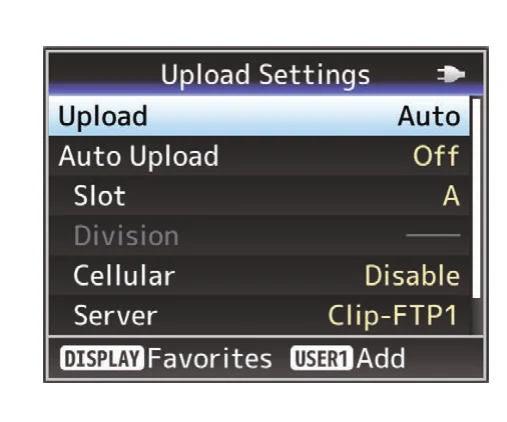
Slot / Server
The media slot and Clip-FTP alias monitored by Auto FTP.
Defines the automatic source and destination.
Division
15 seconds through 15 minutes, or Off, only for the approved HD+Web proxy workflow.
Controls the chunk cadence during recording.
The menu, step by step
01
Network > Connection Setup
Configure Ethernet or the attached Wi-Fi/cellular adapter and verify an IP address.
MANUFACTURER MANUAL EXCERPT · 1/1
Reviewed menu evidence for GY-HC500 / GY-HC550 / GY-HC500SPC family from the archived manual, page 148.
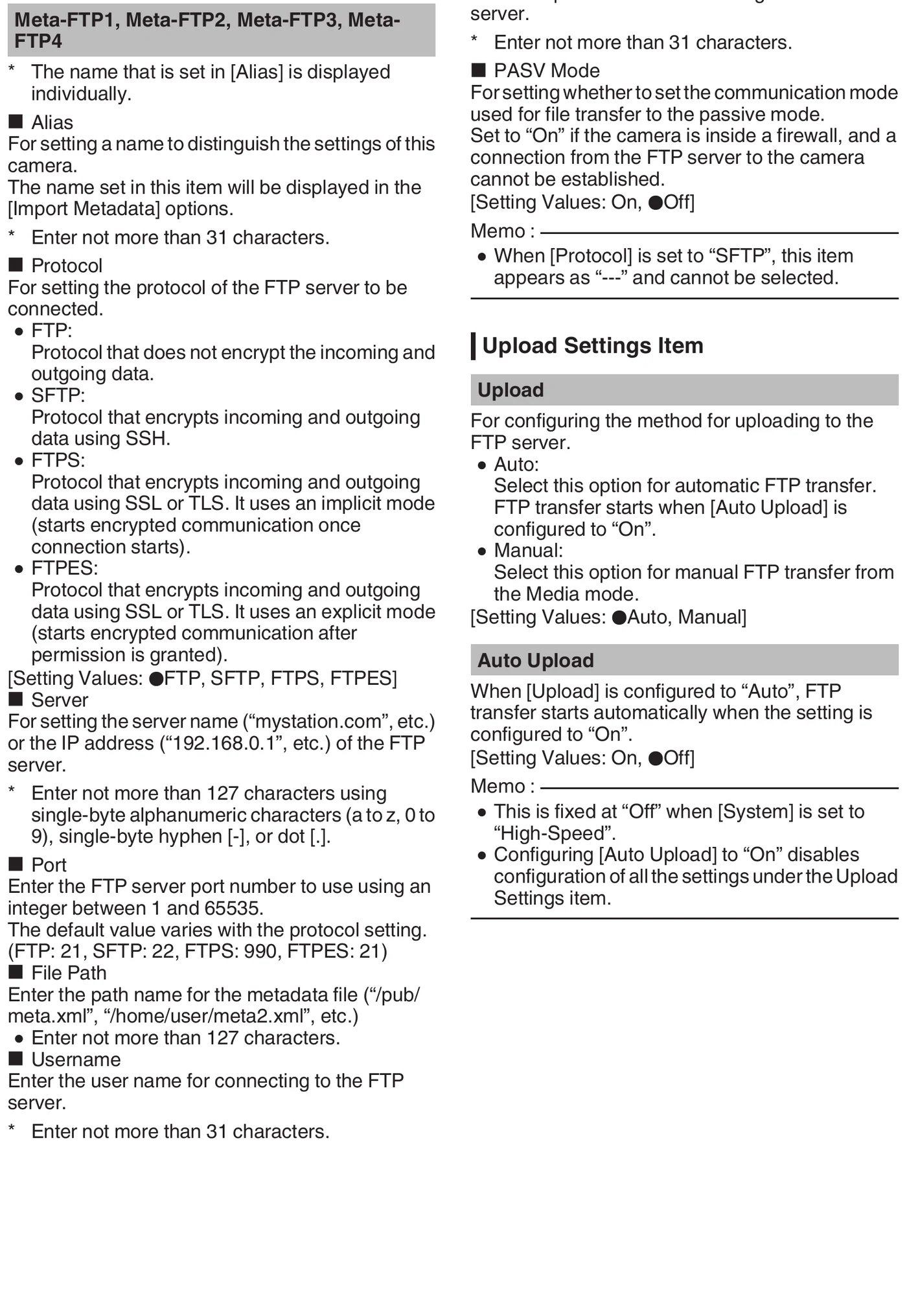
Chunking splits and sends the Slot-B proxy while recording in HD+Web.
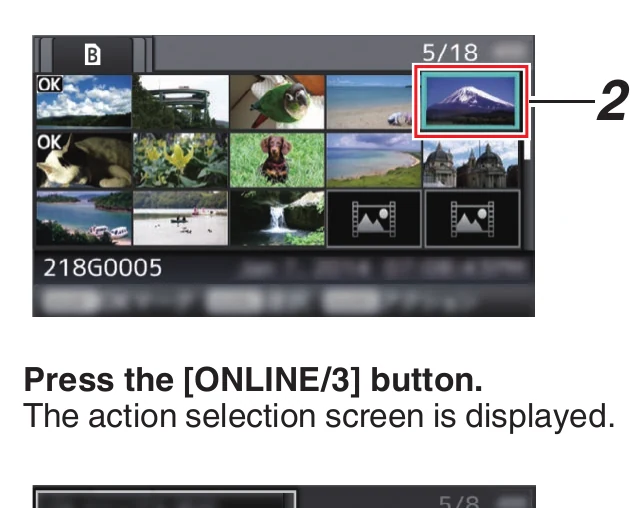
Manual mode exposes all playable clips in the thumbnail view.
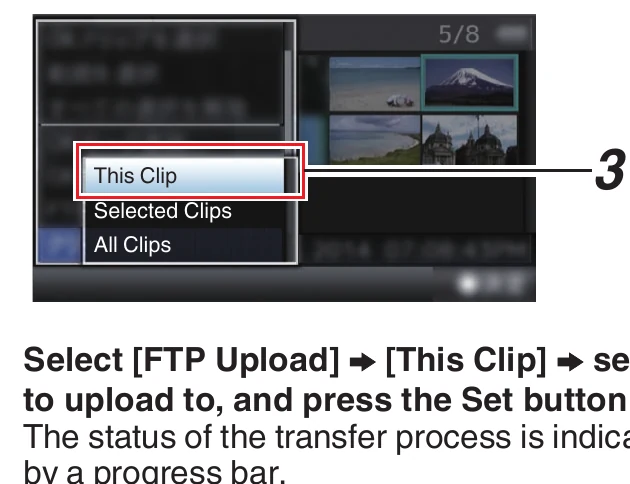
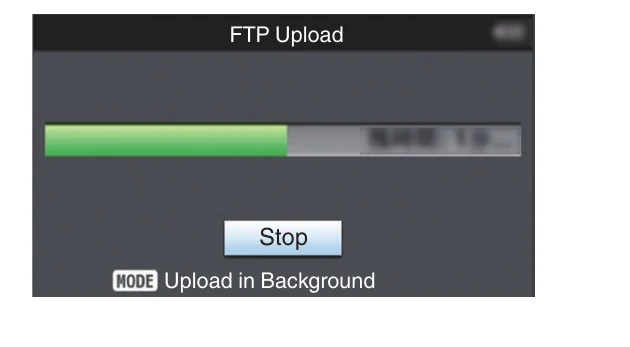
Transfer status is visible on the status screen.
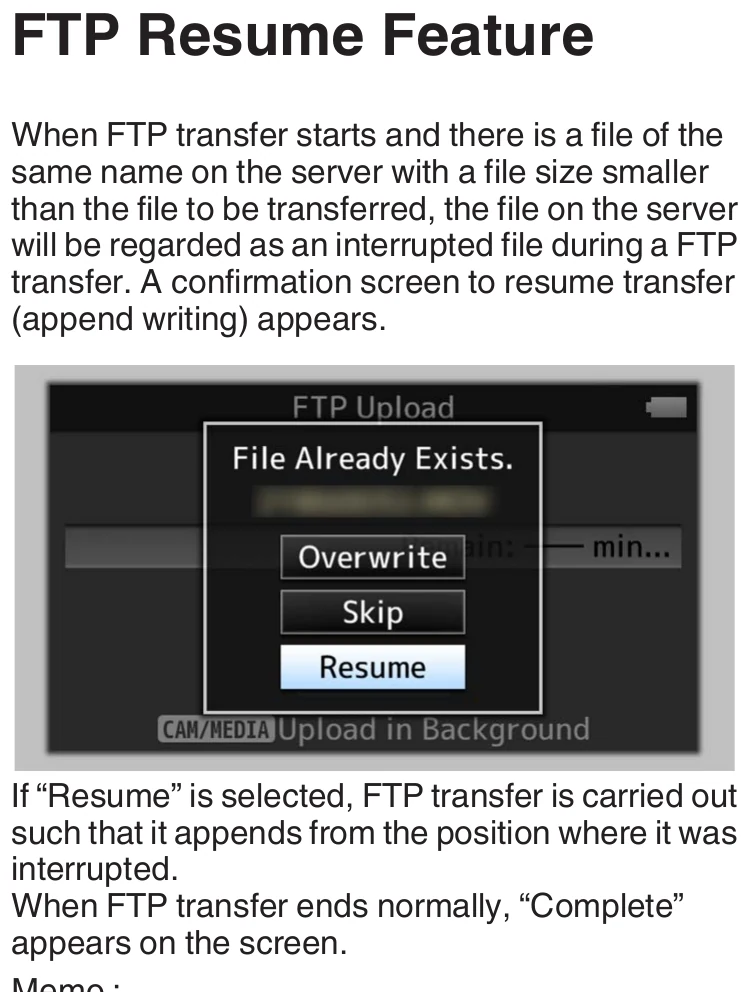
A smaller same-name remote file can offer Resume.
Limits and warnings
Starting recording on the currently transferring auto-upload slot interrupts that transfer.
FTP does not run during live streaming or Return over IP.
High-Speed Record Format disables FTP transfer.
Chunked upload is limited to HD+Web proxy recording in Slot B.
Resume is unavailable for SFTP and HTTP FTP proxy operation.
Wi-Fi/cellular requires a supported HOST USB adapter; built-in connectivity is wired Ethernet.
Prove it on your body
Run this checklist on the exact body, firmware, network, and media format you will use on assignment.
High-Speed recording disables clip FTP. Automatic chunked upload is limited to supported record configurations. Use current firmware; FTP resume is unavailable with SFTP. Physical Camera to Anywhere interoperability is not yet lab-verified.
01Network status shows the correct transport and IP.
02Profile and secure fingerprint are verified.
03Manual clip bytes match remotely.
04Auto FTP sends a newly completed clip.
05Required HD+Web chunk cadence is verified end to end.
06Slot conflict, streaming, high-speed, and resume behaviors are captured in the runbook.
If it will not send
01Auto FTP does not begin
Set Upload to Auto, select Slot and Server, turn Auto Upload On, and leave High-Speed mode.
02Upload is interrupted by recording
Record to a different slot from the one configured for auto FTP.
03No chunks arrive
Use System HD+Web, proxy Slot B, Division not Off, and Auto Upload On.
04Server/login/path error
Verify Server, Port, Protocol, Username, Password, Dir. Path, and account permissions.
05Resume unavailable
Confirm a resume-capable non-SFTP endpoint, no HTTP proxy, and a valid smaller partial file.
Sources
The local archive keeps this research reproducible if an official link changes. It is not redistributed through this site.
01
JVC GY-HC500/GY-HC550 Instructions
Printed pp. 148-150, Upload Settings and Clip Server; pp. 189-193, Auto FTP, chunked upload, Manual FTP, and Resume