← All cameras

Fujifilm X-H2S FTP setup

FTP · FTPS · SFTPAccessory-assisted camera client2022

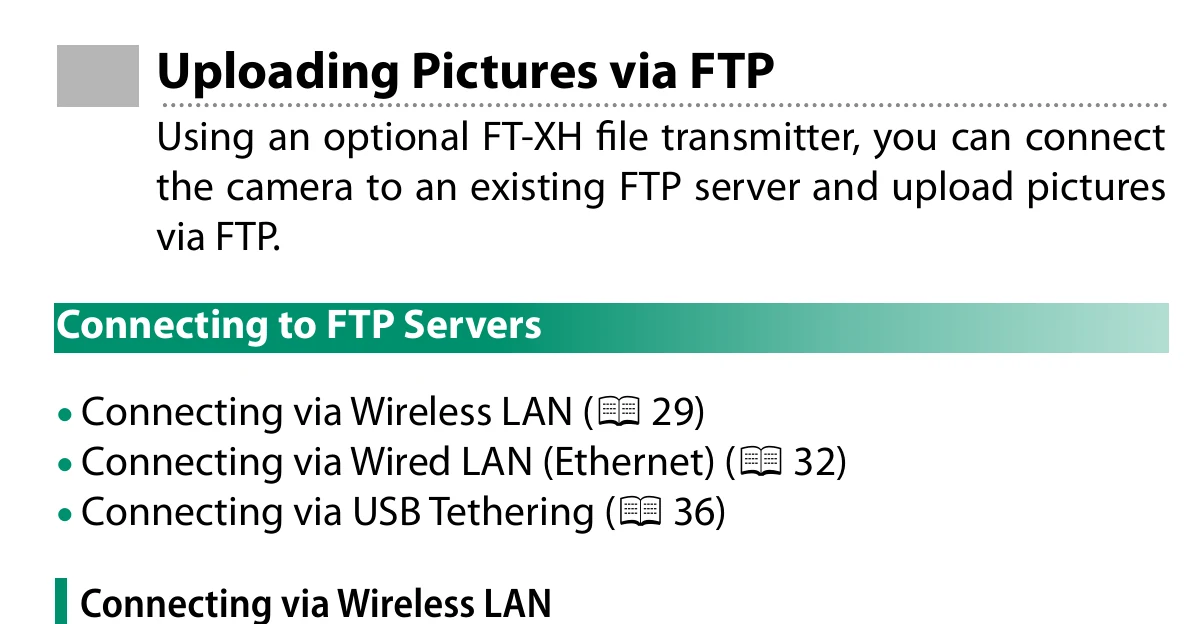
The X-H2S can send stills and movie files to a destination-neutral FTP, FTPS, or SFTP endpoint when the optional FT-XH file transmitter is attached. The transmitter supplies wireless LAN, wired Ethernet, and USB smartphone-tethering paths; the camera stores the server profile and manages upload orders.

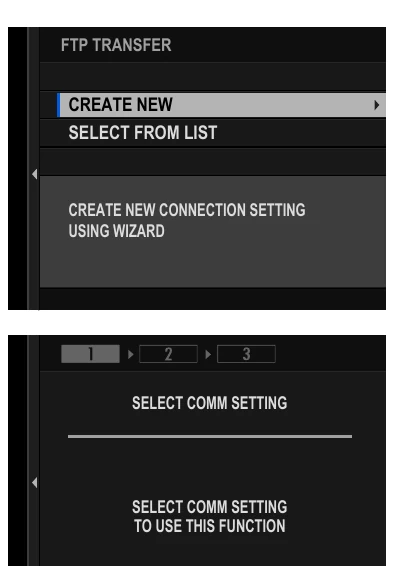
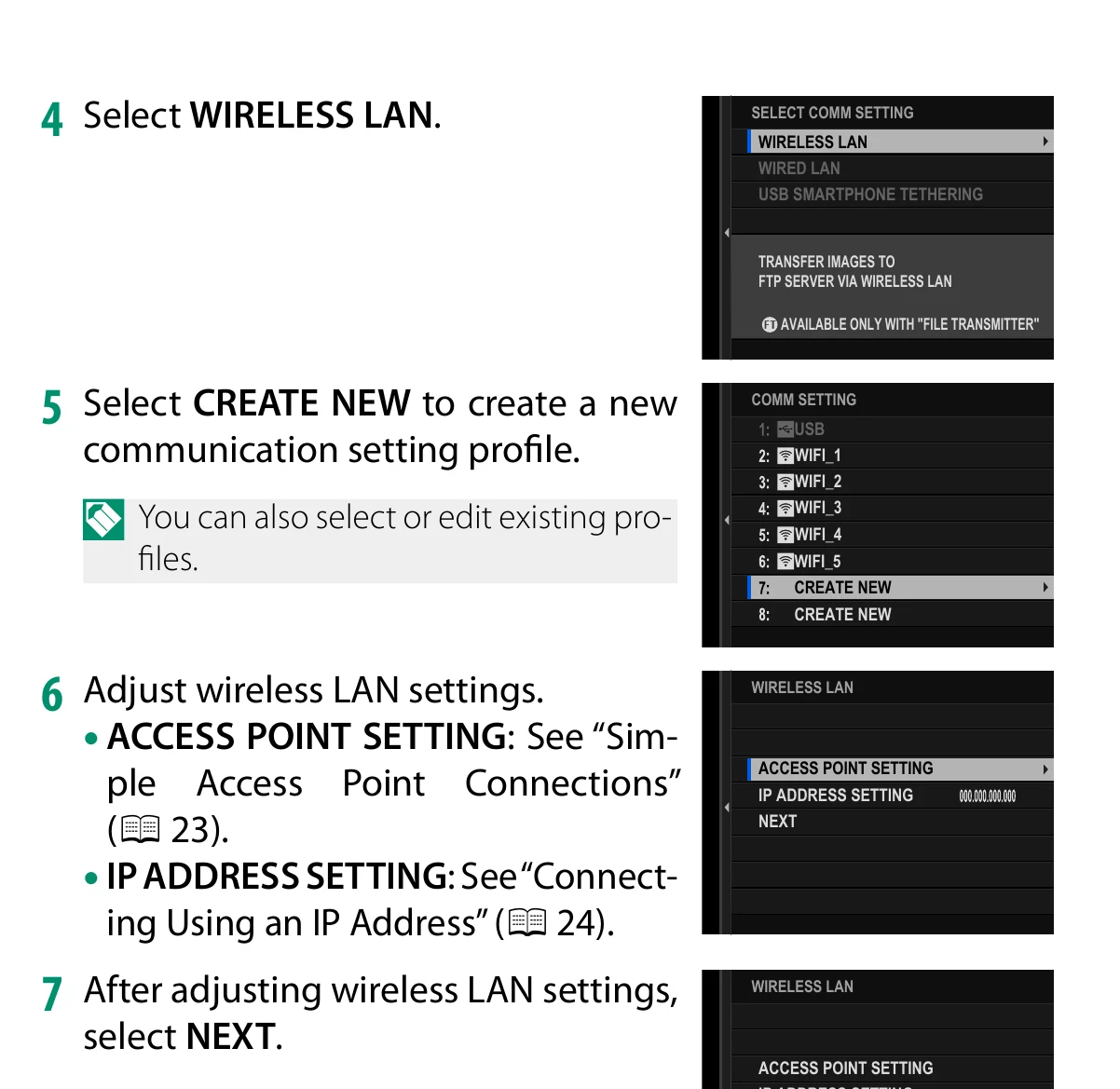
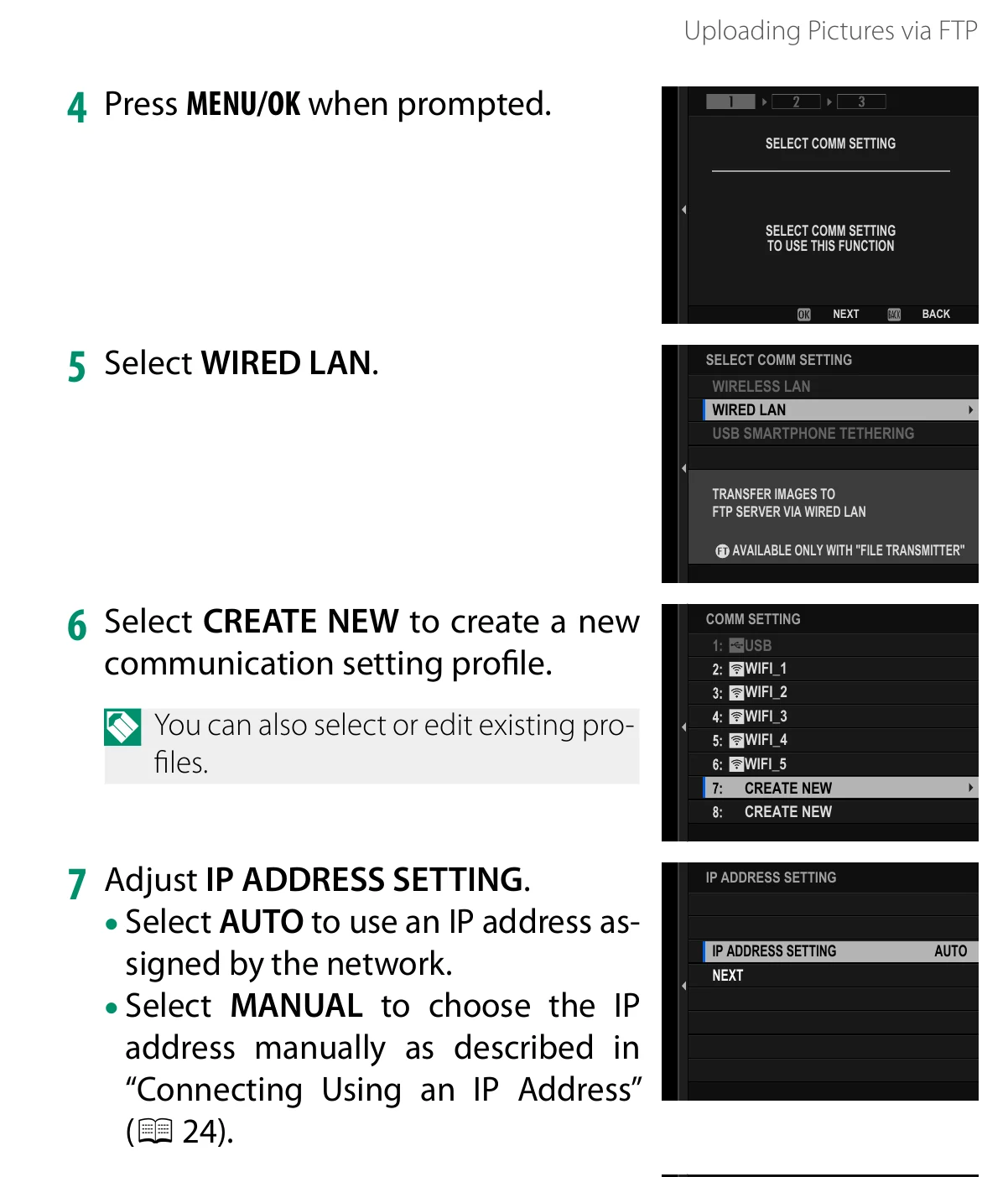
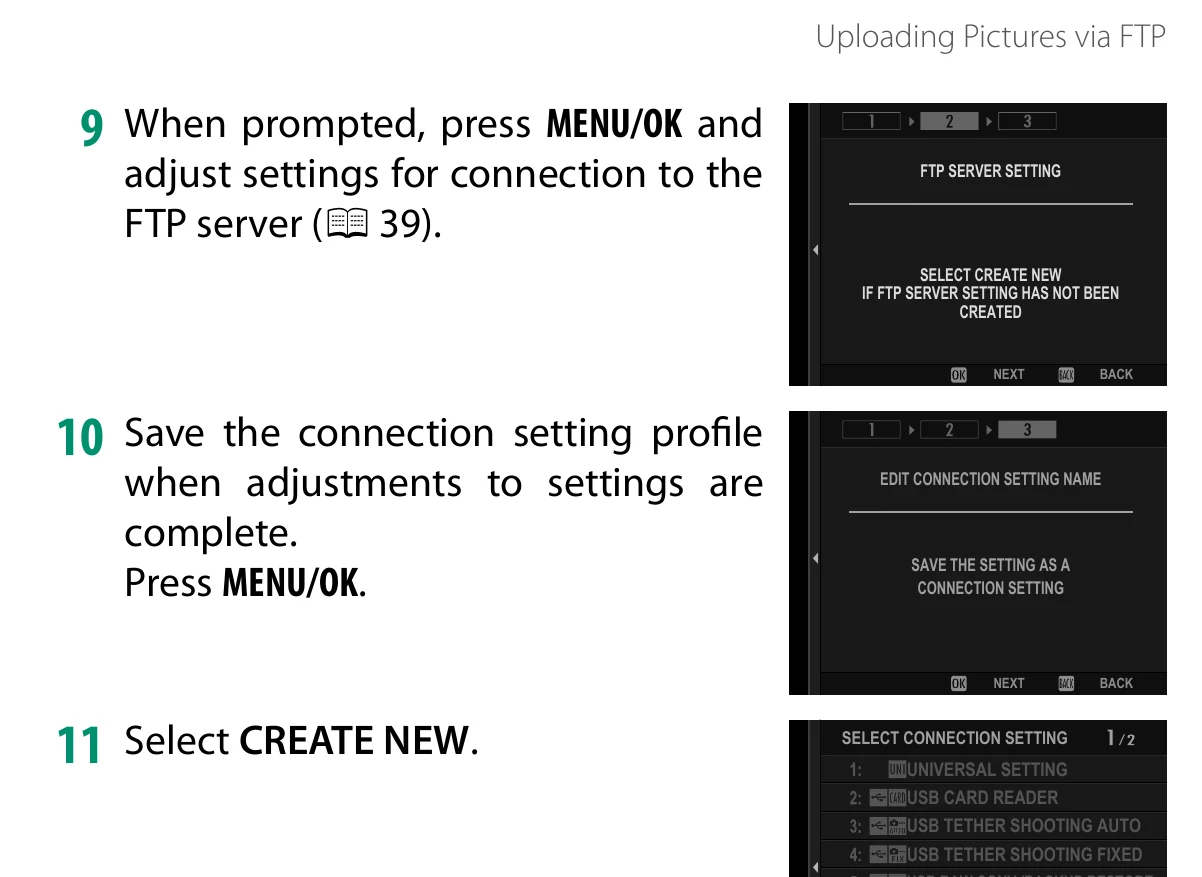
Menu path: Attach FT-XH > Network/USB Setting > Create/Edit Connection Setting > Create Using Wizard > Select Comm Setting > Communication settings > FTP Server Setting > Create New > Save connection setting > Connection Test > Select > Network/USB Setting > FTP Optional Setting. Protocols: FTP · FTPS · SFTP. Sends: JPEG · RAW · HEIF · TIFF · MOV · MP4.

Documented from the manufacturer manual. Sources reviewed .

TransportFT-XH 2.4/5 GHz Wi-Fi + FT-XH wired Ethernet + FT-XH USB tethering through a smartphone or tablet
PayloadJPEG · RAW · HEIF · TIFF · MOV · MP4
Triggersautomatic transfer order after capture / manual select-and-transfer in playback / priority transfer order / continue queued upload while powered off

Before you touch the menu

What to gather

  1. 01X-H2S and FT-XH file transmitter running mutually compatible current firmware.
  2. 02A charged camera and transmitter, plus a memory card containing a test JPEG.
  3. 03A venue Wi-Fi network, Ethernet connection, or a smartphone with USB tethering enabled.
  4. 04Camera to Anywhere server address, protocol, port, username, password, and destination directory.
  5. 05For FTPS with a private trust chain, place the required root certificate on the camera memory card before setup.

Connection fields

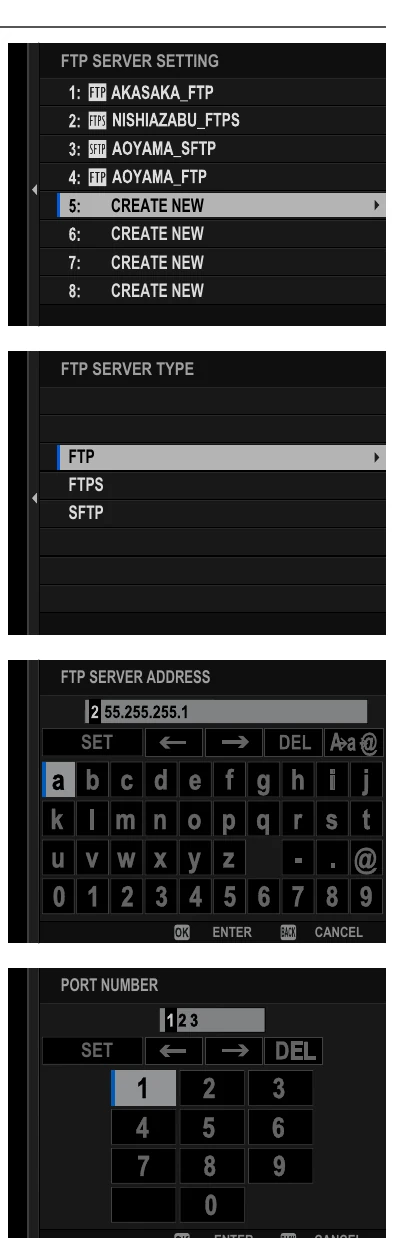
FTP Server Type

FTP, FTPS, or SFTP as issued by Camera to Anywhere.

The protocol controls encryption, default port expectations, and whether passive mode applies.

FTP Server Address

The Camera to Anywhere hostname without a URL scheme or path.

The camera resolves this host as the upload destination.

Port Number

The assigned listener port; do not assume 21, 22, or 990 when the gateway supplies a custom port.

The camera must reach the exact ingress listener.

Proxy Server

Disable unless the venue or organization explicitly supplies an FTP proxy address and port.

A normal hotspot or direct gateway connection does not need a proxy.

Passive Mode

Enable for ordinary FTP/FTPS deployments behind NAT unless the endpoint instructions say otherwise.

Passive mode avoids an inbound data connection from the server to the camera.

Login

Choose User Name & Password and enter the per-source credentials; use Anonymous only when the endpoint explicitly allows it.

Per-source credentials associate uploads with the correct Camera to Anywhere input.

Specify Target Folder

Choose Specify Folder and enter the assigned remote directory, or Root Folder only when instructed.

The remote path routes the files into the intended gallery or workflow.

Overwrite Same File Name

Prefer No for initial testing so the camera appends a number instead of replacing an existing file.

This reduces accidental loss when counters roll over or two cards contain the same filename.

Root Certificate

For FTPS when required, load the approved root certificate from the memory card under FTP Optional Setting.

The transmitter needs a trusted certificate authority for the TLS server.

The menu, step by step

What moves, and what does not

Transfer modes

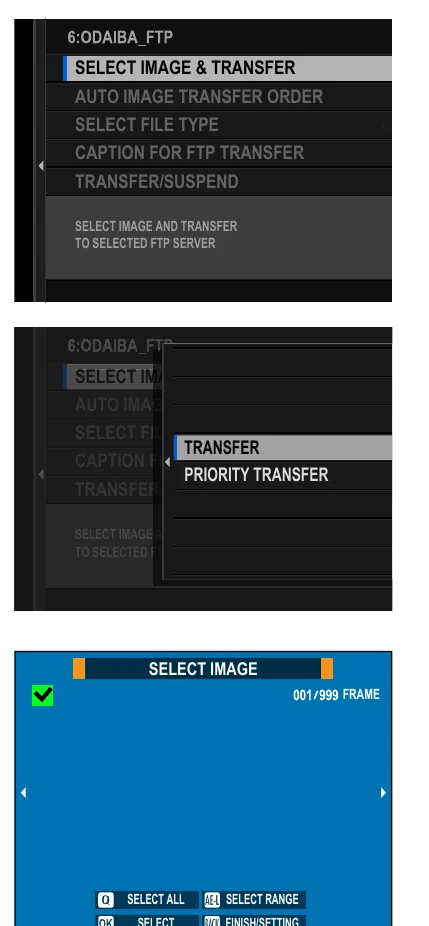
  • Select Image & Transfer for a manually marked batch.
  • Priority Transfer to place selected items ahead of the ordinary queue.
  • Auto Image Transfer Order to mark new captures automatically.
  • Playback-button FTP Transfer Order or FTP Priority Transfer Order after assigning the function.
  • Image Transfer While Power Off to continue a queued upload after the camera is switched off.

Media behavior

  • Select File Type can independently include JPEG, RAW, HEIF, TIFF, MOV, and MP4.
  • A transfer order can contain at most 9,999 items.
  • Switching card slots or changing selection filters clears existing marks in the selection dialog.
  • Captions can be added from the default caption, a created caption, or omitted.
  • FTP Transfer Order Status shows destination and progress for the current profile.

Limits and warnings

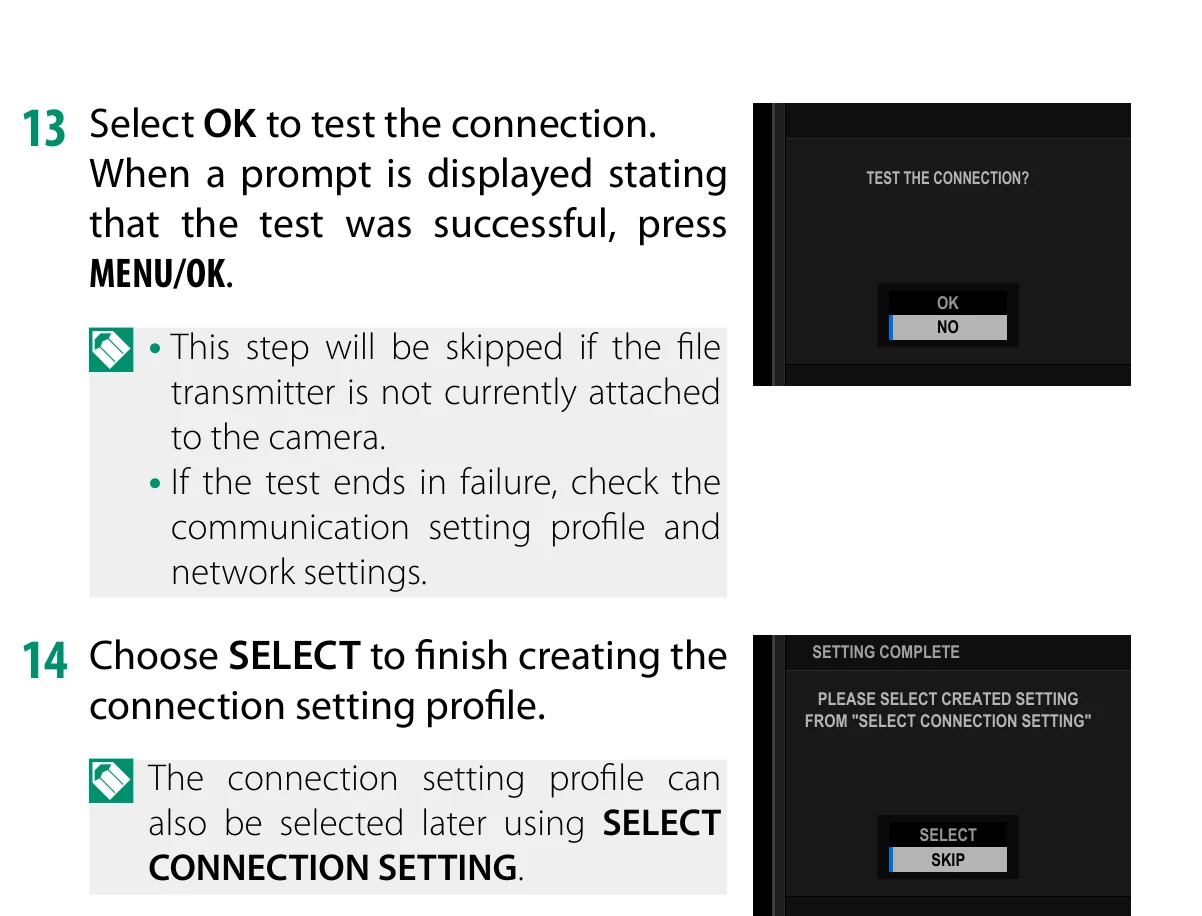
  • FTP menus and transfers require the FT-XH; the connection test is skipped if the transmitter is not attached.
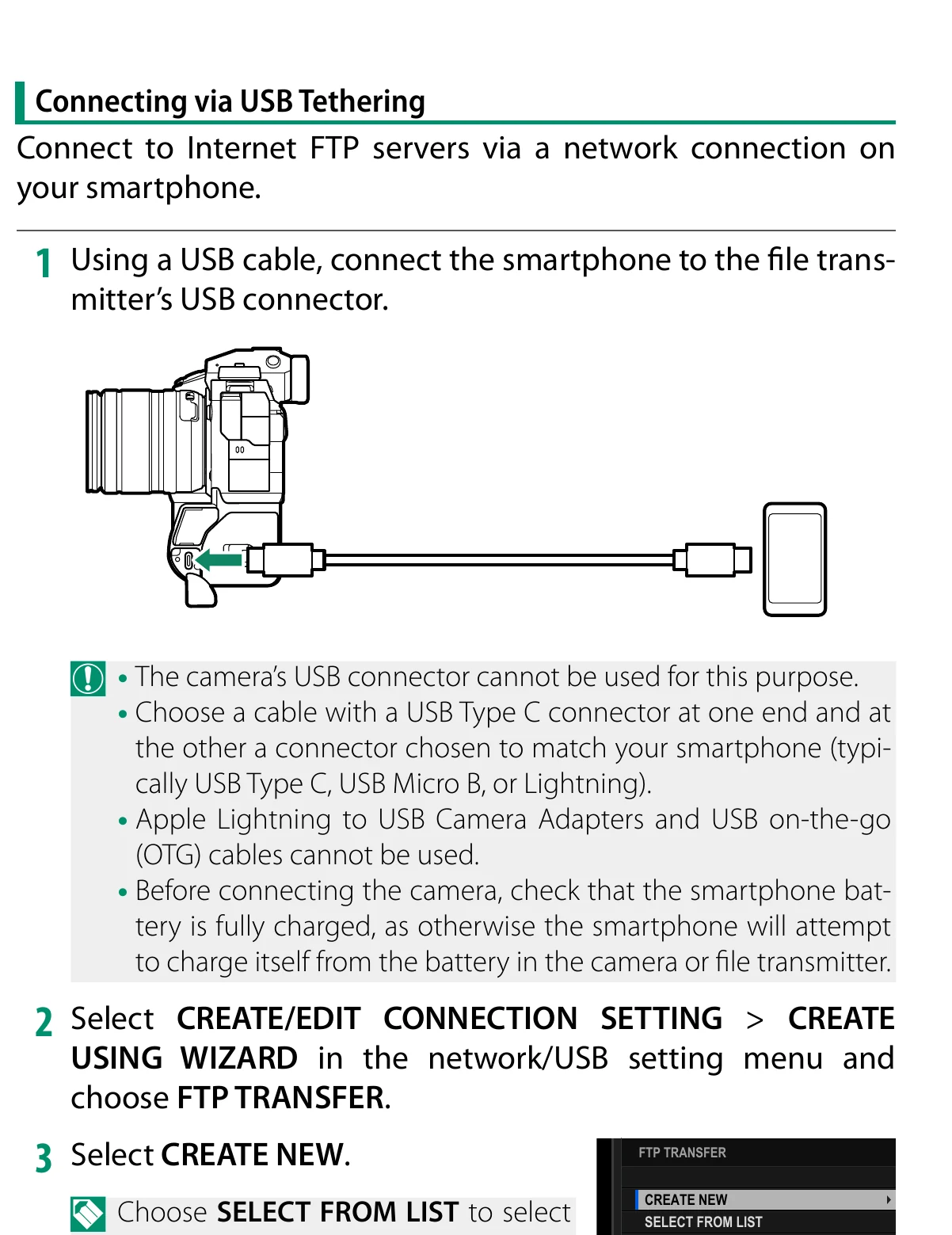
  • USB tethering must use the FT-XH USB connector. Lightning camera adapters and USB OTG cables are not supported by the documented workflow.
  • The phone may attempt to draw power from the camera or transmitter; begin with a charged phone and a supported data cable.
  • Changing the FTPS root certificate can affect other FTPS profiles that use the same transmitter certificate store.

Prove it on your body

Run this checklist on the exact body, firmware, network, and media format you will use on assignment.

FTP features are available only with FT-XH attached. Keep both the camera and FT-XH on current compatible firmware; menu availability has changed through feature firmware releases. Physical Camera to Anywhere interoperability is not yet lab-verified.

  1. 01The FT-XH is recognized and the selected connection profile is active.
  2. 02The built-in connection test reports success.
  3. 03One test JPEG reaches the assigned Camera to Anywhere input folder.
  4. 04Its remote byte size and filename match the memory-card original.
  5. 05A second capture follows the selected manual or automatic transfer behavior.
  6. 06FTP Transfer Order Status shows no remaining error or suspended item.

If it will not send

01Connection test fails

Re-open both the communication profile and FTP server profile; verify transport, DHCP/static addressing, hostname, port, protocol, and credentials.

02Wi-Fi connects but upload does not

Confirm the venue allows the chosen outbound port and that passive mode is enabled for FTP/FTPS behind NAT.

03FTPS certificate warning

Load the correct root certificate from the memory card and confirm the endpoint hostname matches its certificate.

04Files remain queued

Confirm Transfer/Suspend is set to Transfer, the saved profile is selected, and the FT-XH indicator/status screen reports a ready connection.

05Unexpected file type uploads

Review FTP Optional Setting > Select File Type and disable unneeded RAW or movie formats before the next test.

Sources

The local archive keeps this research reproducible if an official link changes. It is not redistributed through this site.

  1. 01

    Fujifilm X-H2S Network and USB Features Guide

    Printed pp. 29-44, Uploading Pictures via FTP; printed pp. 76-78, FTP Optional Setting

    Open manufacturer source ↗
  2. 02

    Fujifilm X-H2S connection manual landing page

    Official HTML/PDF manual index

    Open manufacturer source ↗

archived-local-ignored · retrieved 2026-08-26 · 100 pages

Have this camera? Help us test the path.

Join for free