← All cameras

Canon EOS R5 C FTP setup

FTP · FTPS · SFTPAccessory-assisted camera client2022

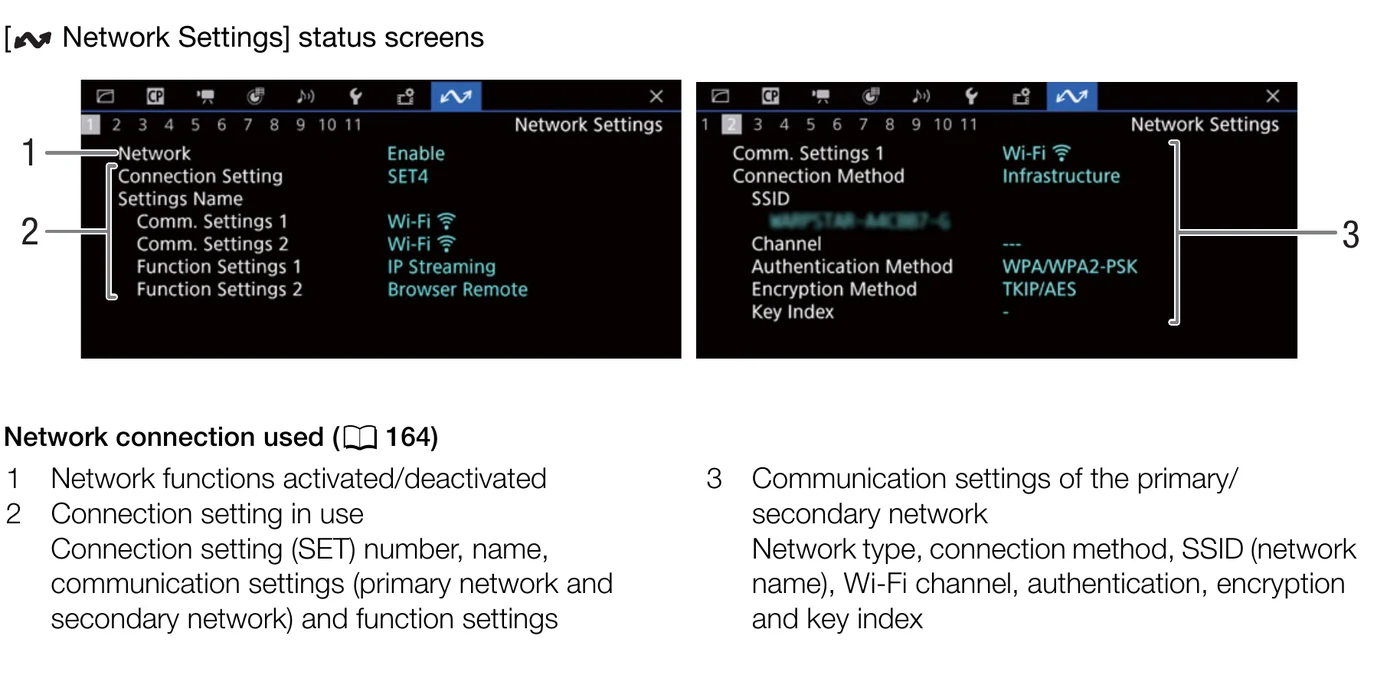
EOS R5 C documents camera-initiated FTP/FTPS/SFTP transfer over Wi-Fi or Ethernet via WFT-R10. For Camera to Anywhere, configure a scoped input-gallery account and send photo-mode still files, XF-AVC clips, MP4 clips directly from the camera; downstream cloud and NAS routes run only after ingest is complete.

Menu path: MENU > Communication functions > Network settings > Create connection > Communication settings > FTP server settings > Transfer images to FTP server. Protocols: FTP · FTPS · SFTP. Sends: photo-mode still files · XF-AVC clips · MP4 clips.

Documented from the manufacturer manual. Sources reviewed .

TransportWi-Fi or Ethernet via WFT-R10
Payloadphoto-mode still files · XF-AVC clips · MP4 clips
Triggersnew photo-mode stills after capture / selected photo-mode stills / one selected XF-AVC or MP4 clip in VIDEO mode / all XF-AVC or MP4 clips in the current index

Before you touch the menu

What to gather

  1. 01A supported EOS R5 C body or, for an accessory guide, a camera listed as compatible by Canon.
  2. 02WFT-R10 is the documented transmitter path; photo-mode built-in Wi-Fi capabilities vary from Cinema OS
  3. 03Current mutually compatible camera/transmitter firmware, a charged battery or continuous event power, and a writable memory card containing a supported file.
  4. 04A network path documented for this setup: Wi-Fi or Ethernet via WFT-R10.
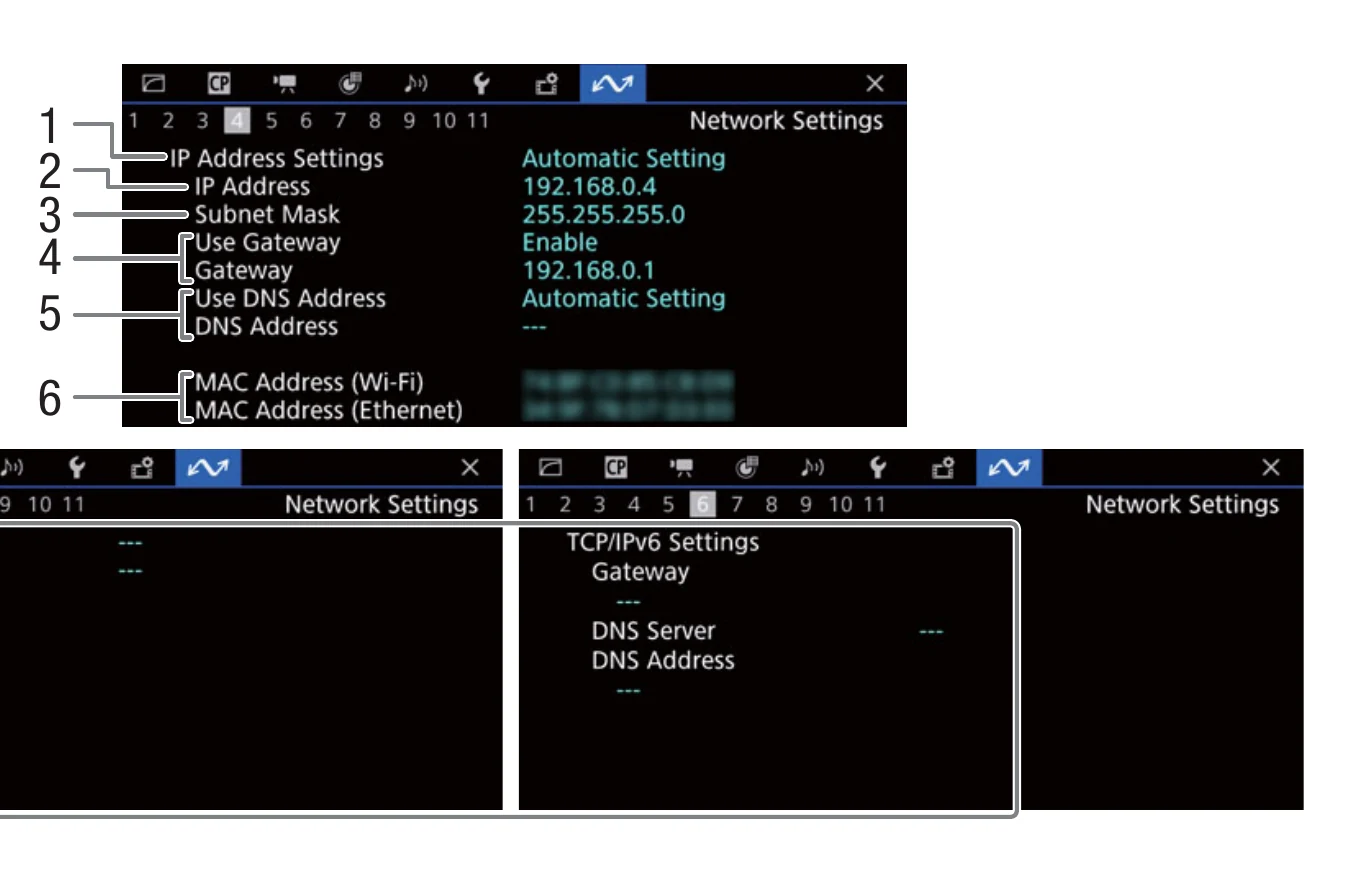
  5. 05A Camera to Anywhere input gallery with a dedicated host, port, username, secret, destination directory, and any certificate or host-key data.
  6. 06A venue LAN or phone/dedicated hotspot without a captive-portal step on the camera and with outbound access to the configured FTP-family ports.

Connection fields

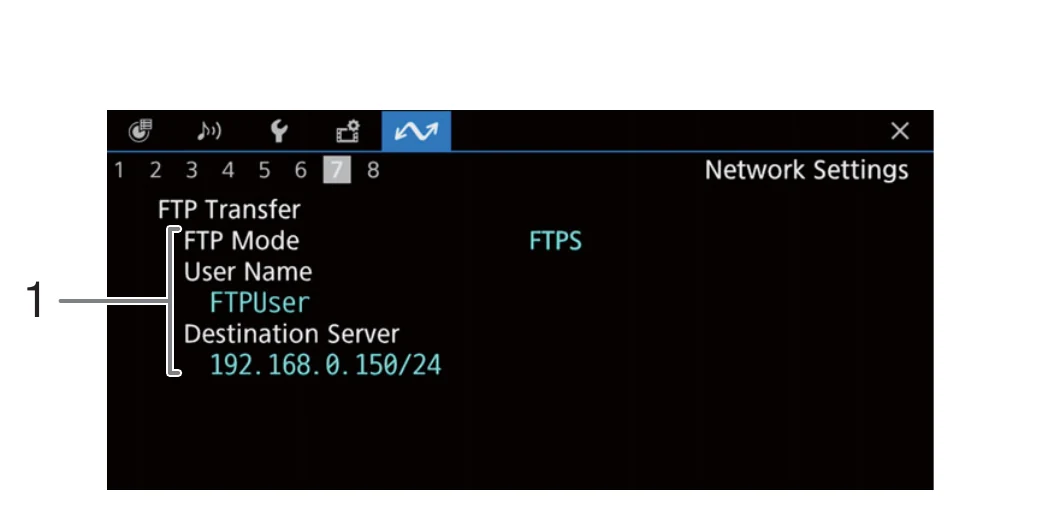
Protocol

The Camera to Anywhere profile choice supported by this body: FTP, FTPS, SFTP

The camera and ingest listener must use the same FTP-family protocol.

Server address / host name

The host name shown in the Camera to Anywhere input-gallery connection card; omit https:// and any path.

Camera FTP fields expect a server address, not a browser URL.

Port

The exact port published with the input-gallery credentials.

Camera to Anywhere may expose different listeners for FTP, explicit FTPS, or SFTP; do not assume a default.

Login name

The per-camera or per-job ingest username.

A scoped identity lets the gateway route and revoke one camera without changing every shooter.

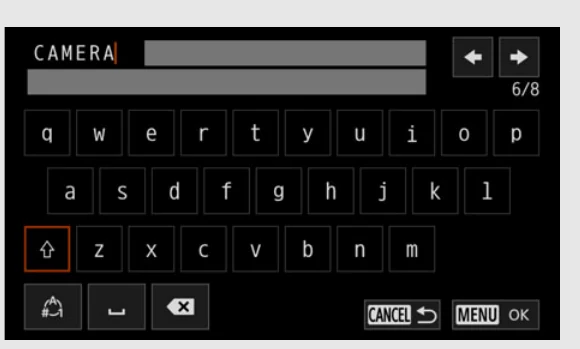
Password / authentication secret

The generated secret shown once for this ingest identity.

The gateway rejects anonymous uploads and uses the credential envelope only for this input.

Target folder / directory

The destination path shown for the input gallery, including leading slash only when the connection card includes it.

The path is a routing key; changing its spelling can create a different server folder.

Passive mode

Use the passive-mode value shown by Camera to Anywhere; prefer passive when the camera offers it behind venue NAT.

Passive data connections are usually more compatible with hotspots and venue firewalls.

FTPS certificate / root certificate

Import or select the CA/root certificate specified by Camera to Anywhere when the camera manual requires certificate validation.

FTPS must authenticate the ingest endpoint before credentials and media are transmitted.

SFTP host key confirmation

Approve only the server fingerprint displayed by Camera to Anywhere.

Matching the host key prevents connecting to an impersonated SFTP endpoint.

The menu, step by step

What moves, and what does not

Transfer modes

  • Automatic: new photo-mode stills after capture.
  • Manual: selected photo-mode stills.
  • Manual: one selected XF-AVC or MP4 clip in VIDEO mode.
  • Manual: all XF-AVC or MP4 clips in the current index.

Media behavior

  • Still payloads documented by the manufacturer: photo-mode still files.
  • Video payloads documented by the manufacturer: XF-AVC clips, MP4 clips.
  • The camera writes the source file to its card first; Camera to Anywhere receives a transmitted copy and does not replace in-camera media management.
  • Treat the camera send mark as transport state, not cloud-delivery proof; confirm the asset appears in the Camera to Anywhere input gallery and destination activity log.

Limits and warnings

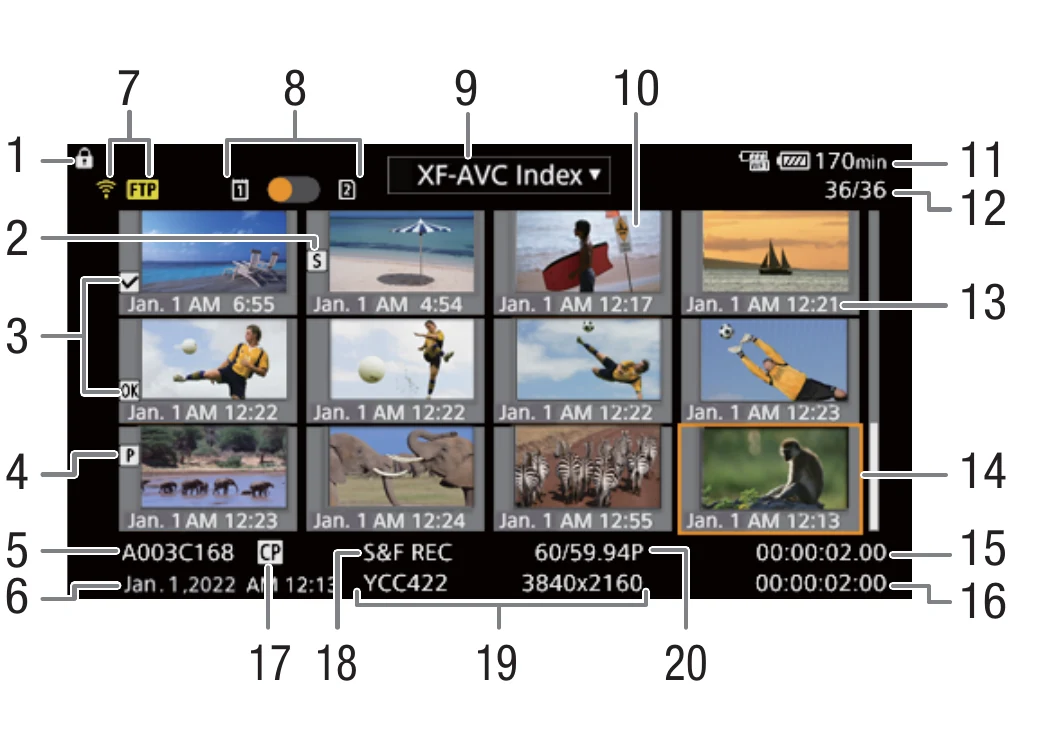
  • In VIDEO mode, Canon documents manual FTP transfer through WFT-R10 from MEDIA mode for one selected clip or all clips in an XF-AVC or MP4 index.
  • WFT-R10 is the documented transmitter path; photo-mode built-in Wi-Fi capabilities vary from Cinema OS.
  • Video or clip payloads require a manual selection unless the exact camera firmware manual states otherwise.
  • Venue Wi-Fi client isolation does not block a camera from reaching a public Camera to Anywhere host, but captive portals, outbound-port filtering, weak signal, and phone hotspot sleep can still prevent or interrupt transfer.

Prove it on your body

Run this checklist on the exact body, firmware, network, and media format you will use on assignment.

In VIDEO mode, Canon documents manual FTP transfer through WFT-R10 from MEDIA mode for one selected clip or all clips in an XF-AVC or MP4 index. Physical Camera to Anywhere interoperability is not yet lab-verified.

  1. 01Confirm EOS R5 C and every required transmitter/adapter run a compatible firmware combination.
  2. 02Create a dedicated Camera to Anywhere ingest identity for EOS R5 C; do not reuse a destination OAuth token as a camera password.
  3. 03Match protocol (FTP/FTPS/SFTP), host, port, username, target directory, and passive/security options to the connection card.
  4. 04Send one small still or clip and wait for the camera transfer-complete mark.
  5. 05Verify the received file size and checksum in the Camera to Anywhere input gallery before enabling automatic or batch transfer.
  6. 06Test the exact recording codec/container and proxy setting planned for the event; a successful JPEG test does not prove video compatibility.
  7. 07Trigger the configured destination route and confirm its activity log independently from camera ingest.
  8. 08Lock the working camera profile against accidental edits and retain a second known-good profile or printed connection card for event recovery.

If it will not send

01The camera cannot find or connect to the server

Confirm the camera has an IP address, the hotspot has Internet access, the host field contains no URL scheme/path, and the venue permits the published control and data ports.

02Login or destination-folder error

Re-enter the scoped username and secret, preserve case, and copy the target directory exactly; create a fresh ingest credential if the secret may have been exposed.

03Small files work but RAW or video stalls

Check remaining card space, battery/power, hotspot sleep settings, passive-mode configuration, signal strength, gateway size limits, and whether the camera permits that file type in the selected transfer mode.

04FTPS/SFTP security validation fails

Match the selected protocol and port, refresh the camera clock, reinstall the required CA certificate for FTPS, or verify the SFTP host fingerprint against the Camera to Anywhere connection card.

05The camera says sent but the destination does not show the asset

First verify the input gallery received the complete file, then inspect routing-node status; camera success covers the ingest hop, not Dropbox, NAS, or another downstream destination.

06Retries create duplicates or overwrite a prior file

Use a unique camera/job prefix and review the body manual overwrite/rename setting; Camera to Anywhere should deduplicate by upload identity and checksum rather than filename alone.

Sources

The local archive keeps this research reproducible if an official link changes. It is not redistributed through this site.

  1. 01

    Official manufacturer evidence

    Network Functions, pp. 161-178; FTP File Transfer, p. 178

    Open manufacturer source ↗

archived-local-ignored · retrieved 2026-08-26 · 252 pages

Have this camera? Help us test the path.

Join for free