← All cameras

Sony PXW-Z580 FTP setup

FTP · FTPESDirect camera client2021

PXW-Z580 can initiate FTP, FTPES transfer of high-resolution original clips, proxy clips over Wi-Fi; wired Ethernet; supported cellular modem. The documented route accepts a user-configured server; it is suitable for a destination-neutral ingest gateway after protocol, firmware, and payload testing.
Menu path: Network → Connection > Network → File Transfer → Server Settings > File Transfer / Thumbnail → Transfer > Network → File Transfer → Auto Upload. Protocols: FTP · FTPES. Sends: high-resolution original clips · proxy clips.

Documented from the manufacturer manual. Sources reviewed .

TransportWi-Fi + wired Ethernet + supported cellular modem
Payloadhigh-resolution original clips · proxy clips
Triggersmanual/remote original transfer and automatic proxy upload

Before you touch the menu

What to gather

  1. 01Use the documented network path: Wi-Fi; wired Ethernet; supported cellular modem.
  2. 02Install or attach the required components: none for integrated network workflow on supported firmware.
  3. 03Prepare a reachable FTP, FTPES endpoint with a writable destination and a camera-specific credential.
  4. 04Firmware/license qualification: External-FTP setup guide covers firmware 5.01 or later.

Connection fields

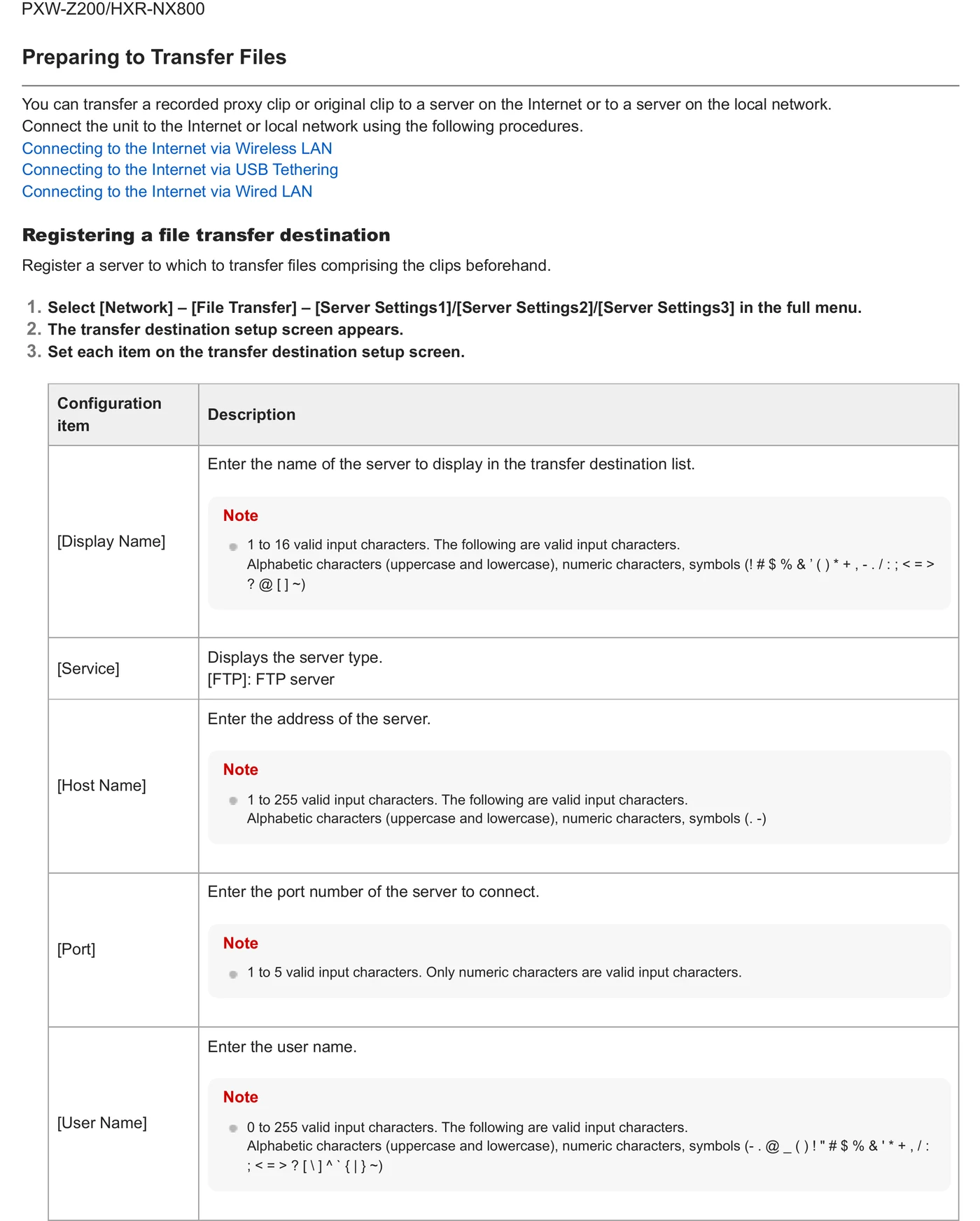
Server Name

An operator-facing destination label.

Distinguishes the production ingest endpoint from vendor-cloud presets or prior assignments.

Server Address / URL

The DNS host or IP value specified by the FTP endpoint.

Directs the camera or adapter to the destination-neutral server.

Protocol / secure connection

A mode explicitly supported by this path: FTP, FTPES.

Must match the listener and its certificate/security configuration.

Port

The port issued with the ingest credential.

Avoids relying on defaults when the gateway uses a dedicated listener.

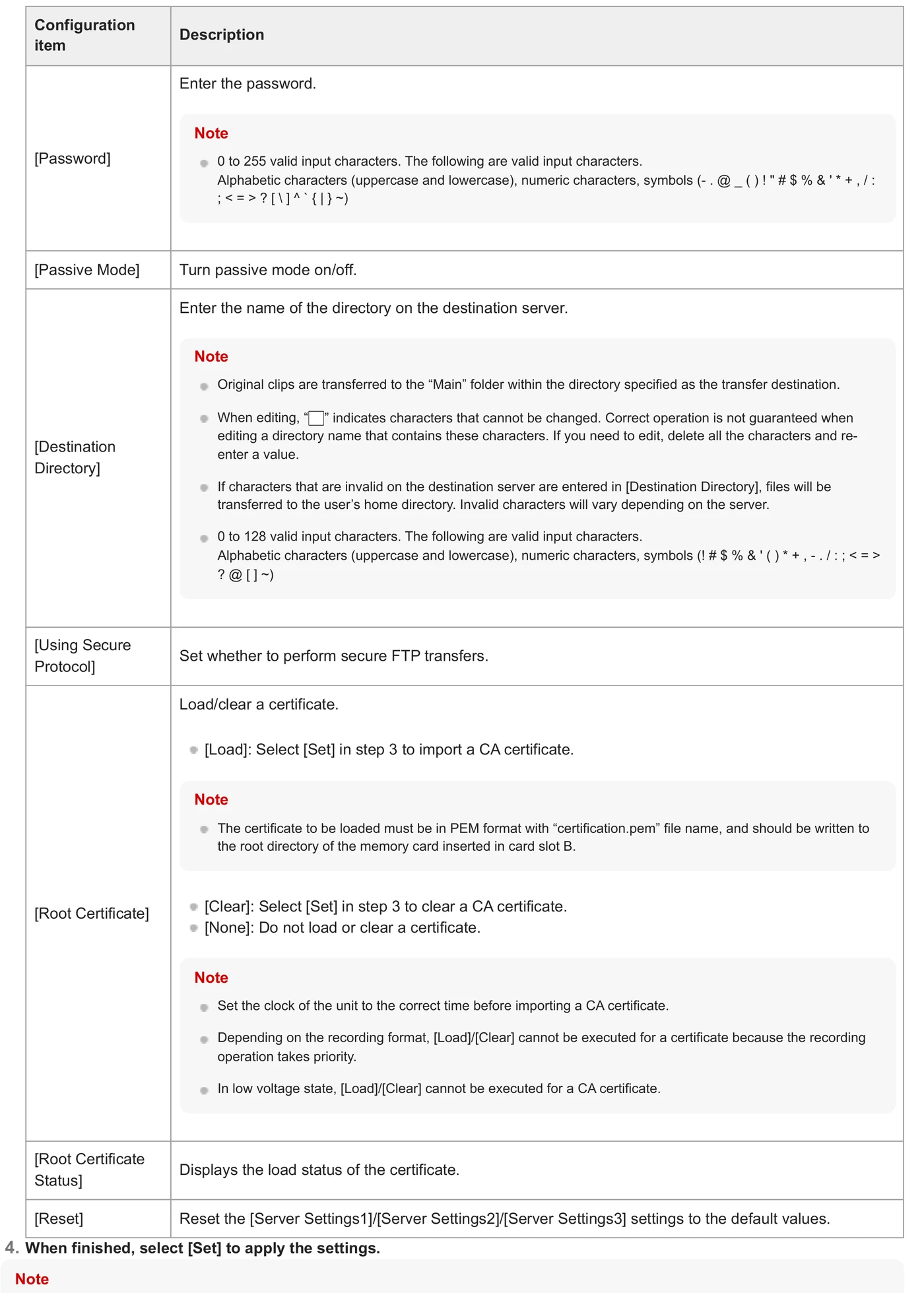
User Name / Password

A least-privilege credential unique to the camera or event.

Permits isolation, audit, and fast revocation.

Destination Directory

The assigned remote folder, without adding an unverified web URL prefix.

Routes clips into the correct job inbox.

Active / Passive

Match the server; passive is normally required through venue NAT.

Controls how the FTP data channel is opened.

Root Certificate

The trusted CA root required by the FTPS/FTPES server, in the format specified by Sony.

Allows TLS server validation instead of bypassing certificate errors.

The menu, step by step

What moves, and what does not

Transfer modes

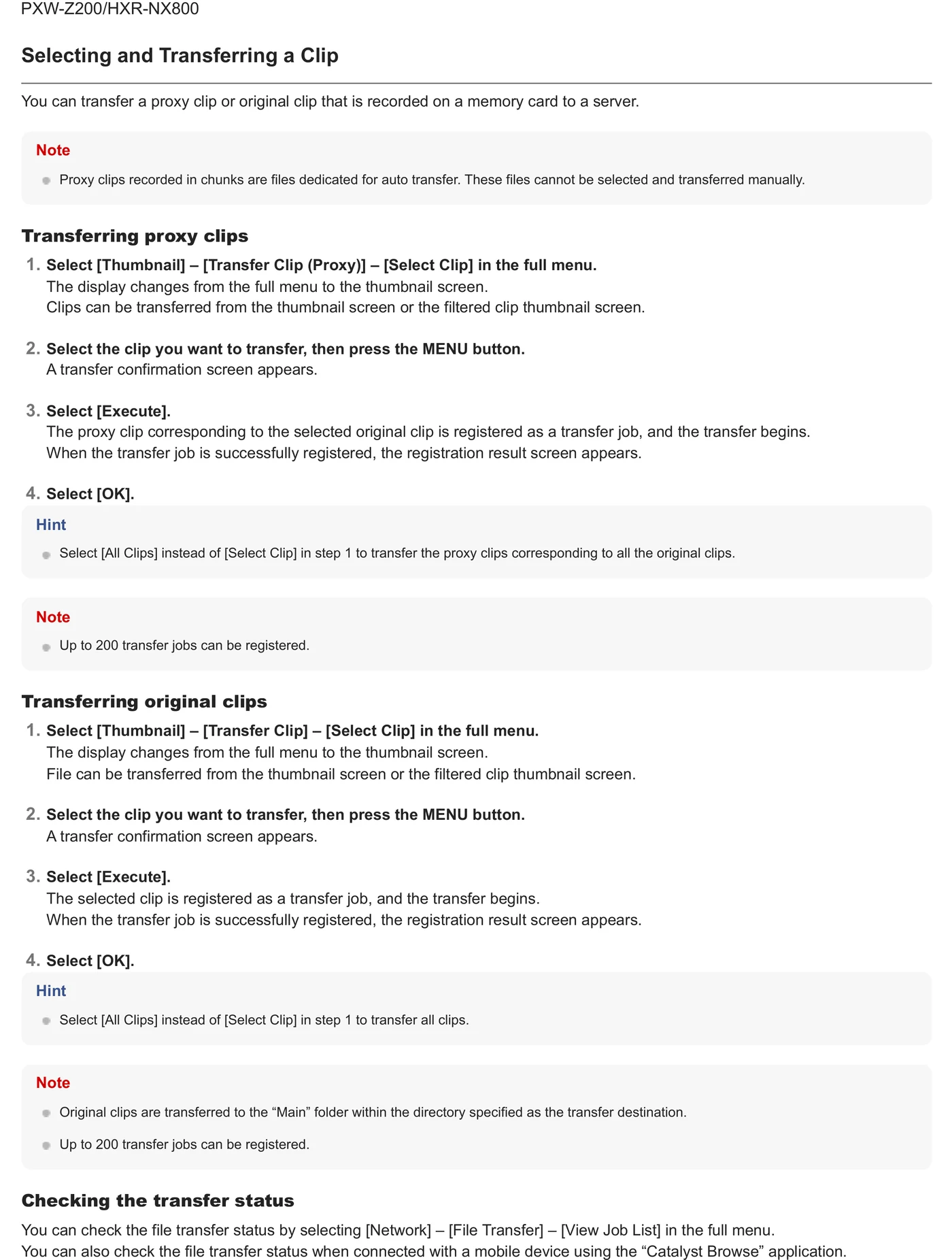
  • Manual path: manual/remote original transfer and automatic proxy upload.
  • Automatic upload is available on this documented path.
  • Where chunked proxy upload is offered, treat it as a distinct mode from post-recording original-file upload.

Media behavior

  • Documented payload classes: high-resolution original clips, proxy clips.
  • Proxy, original/high-resolution, partial, and chunked transfers are separate choices where present; verify the selected type before the event.
  • Use the camera or adapter job/status list as the first completion signal, then verify the object at the destination.

Limits and warnings

  • Required path/hardware: none for integrated network workflow on supported firmware.
  • A product may also advertise a vendor-cloud workflow; this guide uses only the documented arbitrary-server path and does not treat vendor-cloud-only upload as interchangeable.
  • External-FTP setup guide covers firmware 5.01 or later

Prove it on your body

Run this checklist on the exact body, firmware, network, and media format you will use on assignment.

External-FTP setup guide covers firmware 5.01 or later Physical Camera to Anywhere interoperability is not yet lab-verified.

  1. 01Register one test server and make it the explicit destination.
  2. 02Upload a short proxy or small clip and confirm the transfer job reaches Completed.
  3. 03Open the received file and compare its size/duration with the source clip.
  4. 04Record which camera/adapter firmware, accessory, protocol, and port passed the test.
  5. 05If auto or chunk upload is enabled, record a short new clip and verify the expected original/proxy behavior.

If it will not send

01The File Transfer menu is missing or disabled.

Verify required firmware, option license, adapter attachment, recording state, and that the selected network mode permits file transfer.

02The server cannot be registered.

Confirm host syntax, protocol and port, DNS, passive/active mode, credentials, and the writable destination path.

03Secure FTP reports a certificate error.

Verify date/time, root CA import, server hostname, certificate chain, TLS compatibility, and revocation settings documented for the model.

04Proxy arrives but the original does not.

Check payload selection, auto-upload mode, recording codec/licence restrictions, media availability, and whether original transfer starts only after recording stops.

05A queued job repeatedly resumes or fails.

Check link stability, free storage, server timeout/size limits, adapter power, and camera job-list error text before retrying.

Sources

The local archive keeps this research reproducible if an official link changes. It is not redistributed through this site.

  1. 01

    Official manufacturer PDF

    PXW-Z450/Z580: Setup for Upload to FTP Server

    Open manufacturer source ↗

official-pdf-download-blocked · retrieved 2026-08-26T04:40:28Z

Have this camera? Help us test the path.

Join for free