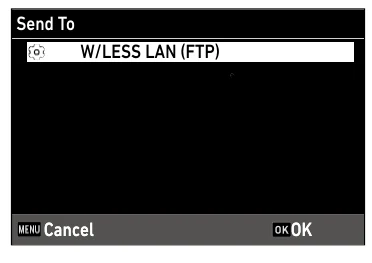
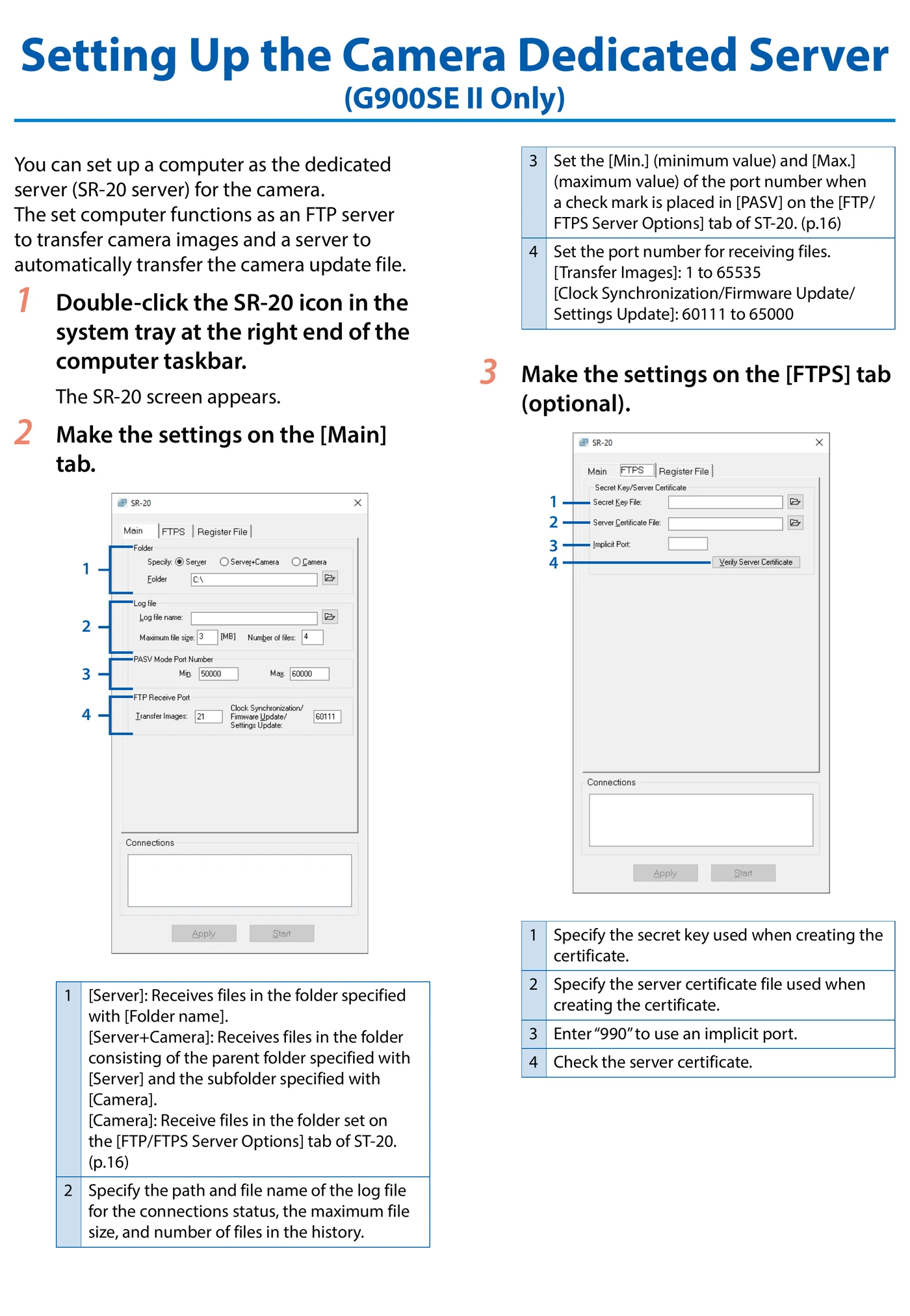
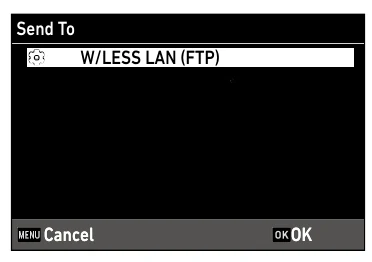
The G900SE II uses built-in Wi-Fi plus an ST-20 communication list to initiate FTP or FTPS uploads to a configurable server. It imports the .PRM profile, selects a W/LESS LAN (FTP) target, and provides playback, instant-review, automatic, and power-off transfer controls.
Menu path: ST-20 > Add > ST-20 > Network / Wireless LAN Setting > ST-20 > FTP/FTPS Server Options > ST-20 > File > Save As / Tools > Transfer Communication List (MSC Transfer) > Camera G menu > Import Com. Setting > Send To > G menu > Simple Connection / Communication Mode > C menu > File Send / G menu > Quick Send Mode. Protocols: FTP · FTPS. Sends: captured still images · recorded movie files.
Documented from the manufacturer manual. Sources reviewed .
Transportbuilt-in 2.4 GHz Wi-Fi through an access point or hotspot
Payloadcaptured still images · recorded movie files
Triggersplayback File Send / one-touch or two-touch quick send / automatic transfer after capture / queued still or still-plus-movie transfer at power-off
Before you touch the menu
What to gather
01Current G900SE II firmware and current ST-20 from DC Software II.
02A Windows computer for ST-20.
03A camera-formatted card or USB MSC connection for the communication list.
04A reachable Wi-Fi access point or hotspot.
05Camera to Anywhere endpoint host/IP, port, credentials, folder, encryption mode, and PEM/DER certificate when required.
Connection fields
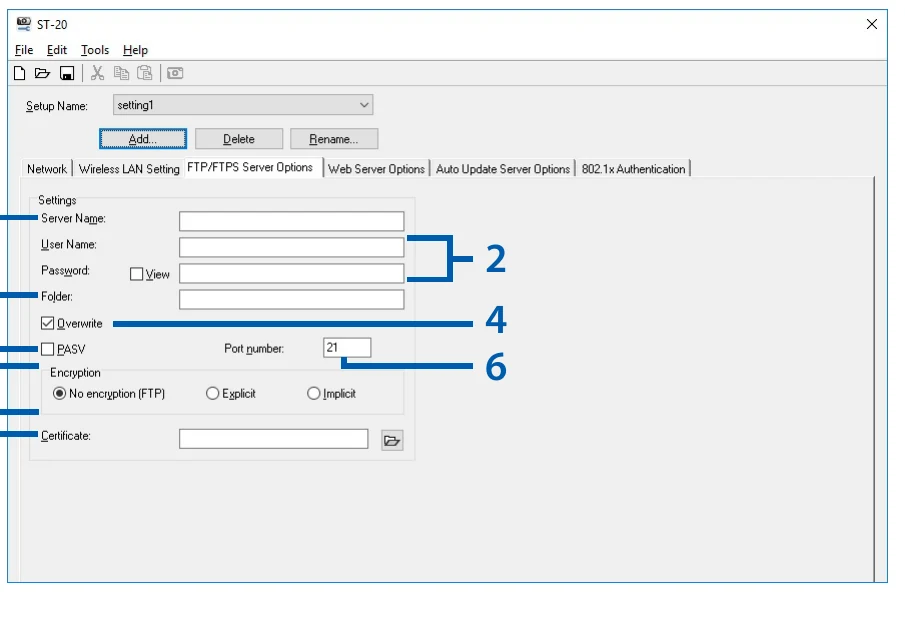
Destination server
Camera to Anywhere hostname or IP.
Identifies the receiver.
User ID and password
Per-source credentials.
Authenticates and routes the source.
Folder
Assigned remote path.
Places files in the correct input.
Overwrite duplicate names
Leave unchecked during validation.
Prevents an existing remote file from being replaced.
PASV
Check for standard NAT/firewall operation.
Uses passive FTP data connections.
Port
Exact assigned listener port.
Must match the endpoint.
Encryption
FTP, Explicit FTPS, or Implicit FTPS.
Must match the listener's TLS mode.
Certificate file
PEM or DER trust file if required.
Lets the camera validate the FTPS server.
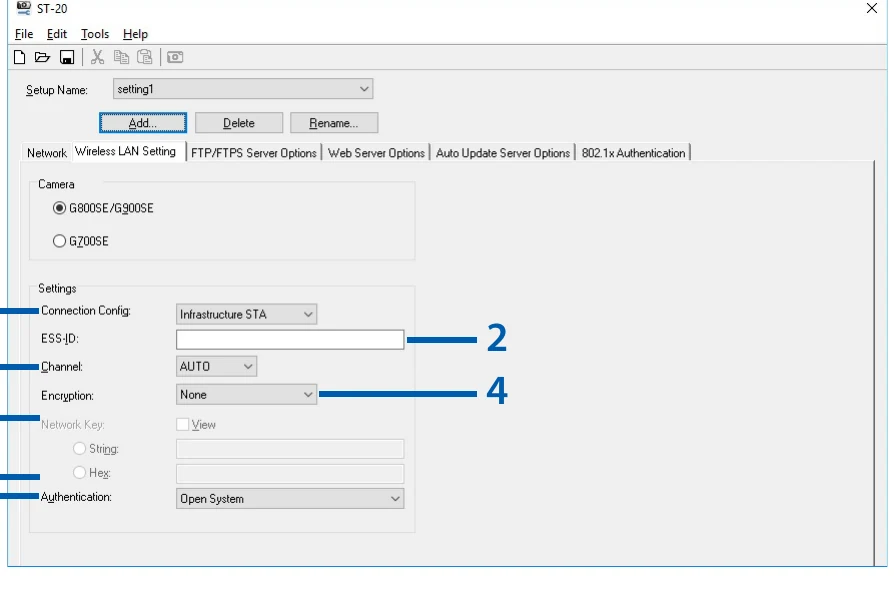
ESS-ID / Network Key
Venue SSID and credential.
Joins the camera to the access point.
The menu, step by step
01
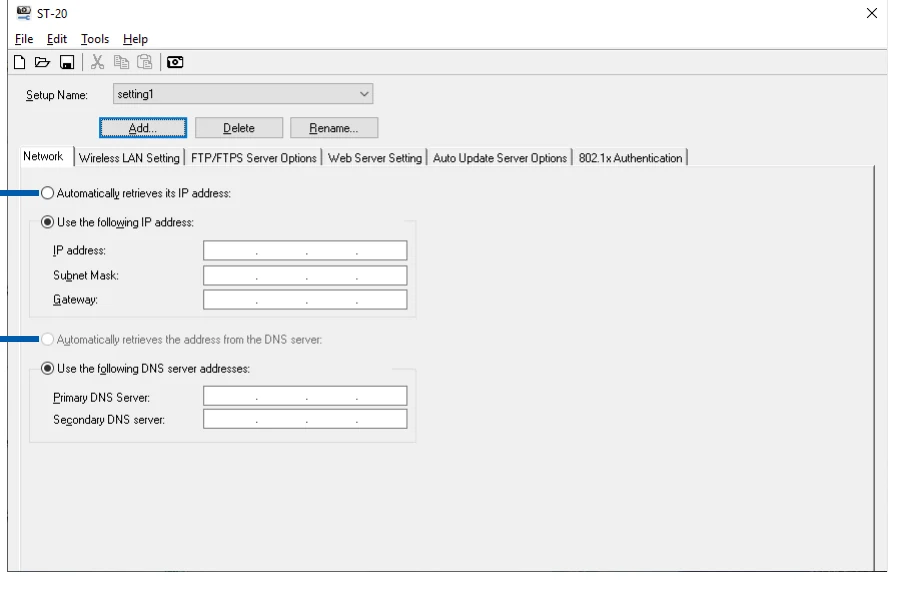
ST-20 > Add
Create and name a transmission destination.
MANUFACTURER MANUAL EXCERPT · 1/1
The G900SE II software manual uses this shared ST-20 screen: add a route, then enter its IP, subnet, gateway and DNS values.
File Send supports captured images and recorded movie files.
Quick-send Auto ignores Image File Size and sends the original.
Auto Delete can remove sent files and should remain off for initial testing.
Send Status controls whether the destination list appears each time.
Support includes retry count, AP timeout, ping, logs, and retained WLAN connection.
Limits and warnings
ST-20 is Windows-only.
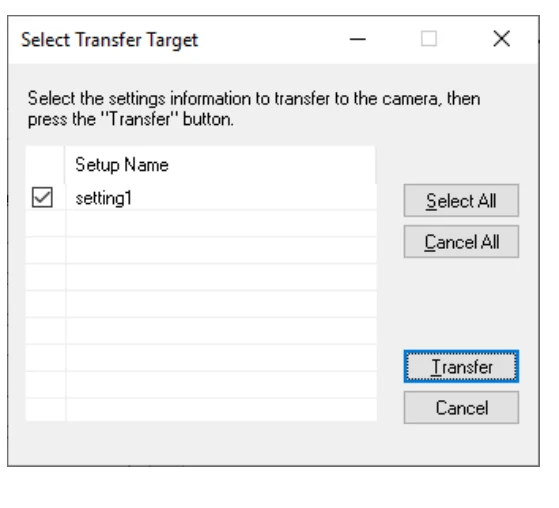
The communication list must be transferred through MSC or imported from a camera-formatted card SYSTEM folder.
Instant-review sending is unavailable in T/B and supported continuous/burst modes.
FTP/FTPS is documented; SFTP is not.
Regenerate and re-import the list after changing endpoint or Wi-Fi credentials.
Prove it on your body
Run this checklist on the exact body, firmware, network, and media format you will use on assignment.
Use current camera firmware and the current ST-20 software when regenerating communication lists. FTP/FTPS controls are G900SE II-only within the shared G900 II manual. Physical Camera to Anywhere interoperability is not yet lab-verified.
01The .PRM list is imported.
02W/LESS LAN (FTP) appears and is selected.
03The camera joins the intended access point.
04One playback JPEG reaches the assigned folder.
05Remote filename and byte size match.
06Retention, auto-send, and power-off-send behavior are approved.
If it will not send
01Communication list transfer fails
Set USB Connection to MSC and confirm a camera-created SYSTEM folder exists.
02No W/LESS LAN (FTP) destination
Re-import the .PRM list and inspect its saved destination in ST-20.