← All cameras

Panasonic AG-CX370 FTP setup

FTPAccessory-assisted camera client2025

AG-CX370 can initiate FTP transfer of P2 MXF clips, MOV clips, P2 proxy clips over wireless LAN; wired LAN; USB tethering/mobile route as supported. The documented route accepts a user-configured server; it is suitable for a destination-neutral ingest gateway after protocol, firmware, and payload testing.

Menu path: Update to firmware 1.24 or later > Configure the network route > Open the firmware 1.24 FTP/file-transfer controls > Choose manual or automatic transfer. Protocols: FTP. Sends: P2 MXF clips · MOV clips · P2 proxy clips.

Documented from the manufacturer manual. Sources reviewed .

Transportwireless LAN + wired LAN + USB tethering/mobile route as supported
PayloadP2 MXF clips · MOV clips · P2 proxy clips
Triggersmanual and automatic transfer; proxy-only can be selected for P2 recordings

Before you touch the menu

What to gather

  1. 01Establish a supported route: wireless LAN; wired LAN; USB tethering/mobile route as supported.
  2. 02Have the required hardware or provisioning ready: network connection; no vendor storage subscription is stated for the FTP destination.
  3. 03Prepare a reachable FTP server, login, writable directory, and enough server capacity for P2 MXF clips, MOV clips, P2 proxy clips.
  4. 04Firmware qualification: FTP was added in firmware 1.24.
  5. 05Firmware qualification: AVCHD is excluded.
  6. 06Firmware qualification: file transfer is unavailable during 4K streaming or NDI HX2 output.

Connection fields

Destination host/folder

The designated reachable network server and folder issued for the job.

Firmware 1.24 sends files to a configured network folder.

FTP credential

A least-privilege camera/event login.

Authenticates the transfer and supports isolation.

Transfer mode

Manual or automatic; for P2 choose full material or proxy-only as required.

Determines trigger and bandwidth.

Network route

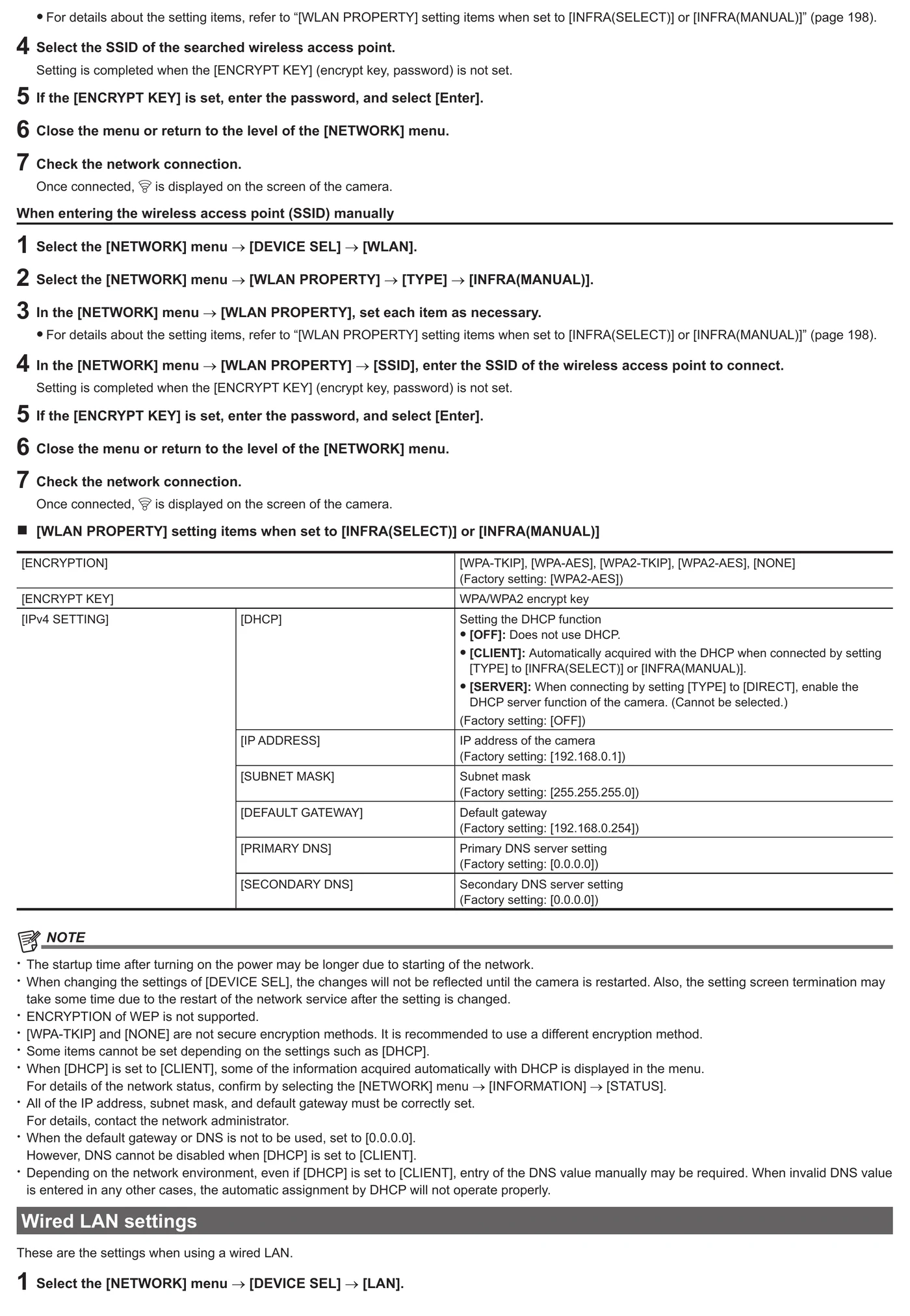
Wired LAN, wireless LAN, or supported mobile route; do not enable incompatible simultaneous IP output modes.

The file-transfer service requires a working IP path.

The menu, step by step

What moves, and what does not

Transfer modes

  • Documented operation: manual and automatic transfer; proxy-only can be selected for P2 recordings.
  • Begin with a manually selected short clip; enable automatic/record-during-upload only after end-to-end verification.

Media behavior

  • Documented payload classes: P2 MXF clips, MOV clips, P2 proxy clips.
  • Main material and proxy are separate transfer targets where documented; confirm the active recording format creates the chosen payload.
  • Do not remove or format the recording card while an upload is pending or active.

Limits and warnings

  • Required equipment/provisioning: network connection; no vendor storage subscription is stated for the FTP destination.
  • FTP was added in firmware 1.24
  • AVCHD is excluded
  • file transfer is unavailable during 4K streaming or NDI HX2 output
  • Test large files and the selected recording format before production; older P2 manuals document format- or size-specific transfer restrictions.

Prove it on your body

Run this checklist on the exact body, firmware, network, and media format you will use on assignment.

FTP was added in firmware 1.24 AVCHD is excluded Physical Camera to Anywhere interoperability is not yet lab-verified.

  1. 01Confirm the camera has an IP address and can resolve/reach the server.
  2. 02Transfer one short eligible clip and confirm it appears in the assigned folder.
  3. 03Open the received file and compare size/duration with the source.
  4. 04Confirm whether the received object is main material or proxy.
  5. 05If automatic upload is enabled, record another short clip and verify the queue and completion state without removing the card.

If it will not send

01FTP CLIENT SERVICE or UPLOAD is unavailable.

Verify firmware, network device selection, adapter recognition, recording/playback state, and any profile or license prerequisite.

02The server cannot be reached.

Confirm DHCP/static address, gateway, DNS, server URL, port, route, and venue firewall/NAT behavior.

03Authentication succeeds but copying fails.

Check destination syntax, write permission, free space, card state, file-size limits, and whether the format is eligible.

04Automatic upload pauses or never queues.

Check upload enablement, profile state, recording format, card access load, shot-mark/proxy filters, and incompatible streaming/NDI modes.

Sources

The local archive keeps this research reproducible if an official link changes. It is not redistributed through this site.

  1. 01

    Official model or firmware evidence

    Firmware Ver. 1.24: FTP file transfer; manual/automatic transfer

    Open manufacturer source ↗
  2. 02

    Official manufacturer PDF

    Operating Instructions, base network setup chapters; this May 2025 manual predates the separately documented firmware 1.24 FTP addition

    Open manufacturer source ↗

archived-official-pdf · retrieved 2026-08-26T04:40:28Z · 234 pages

Have this camera? Help us test the path.

Join for free