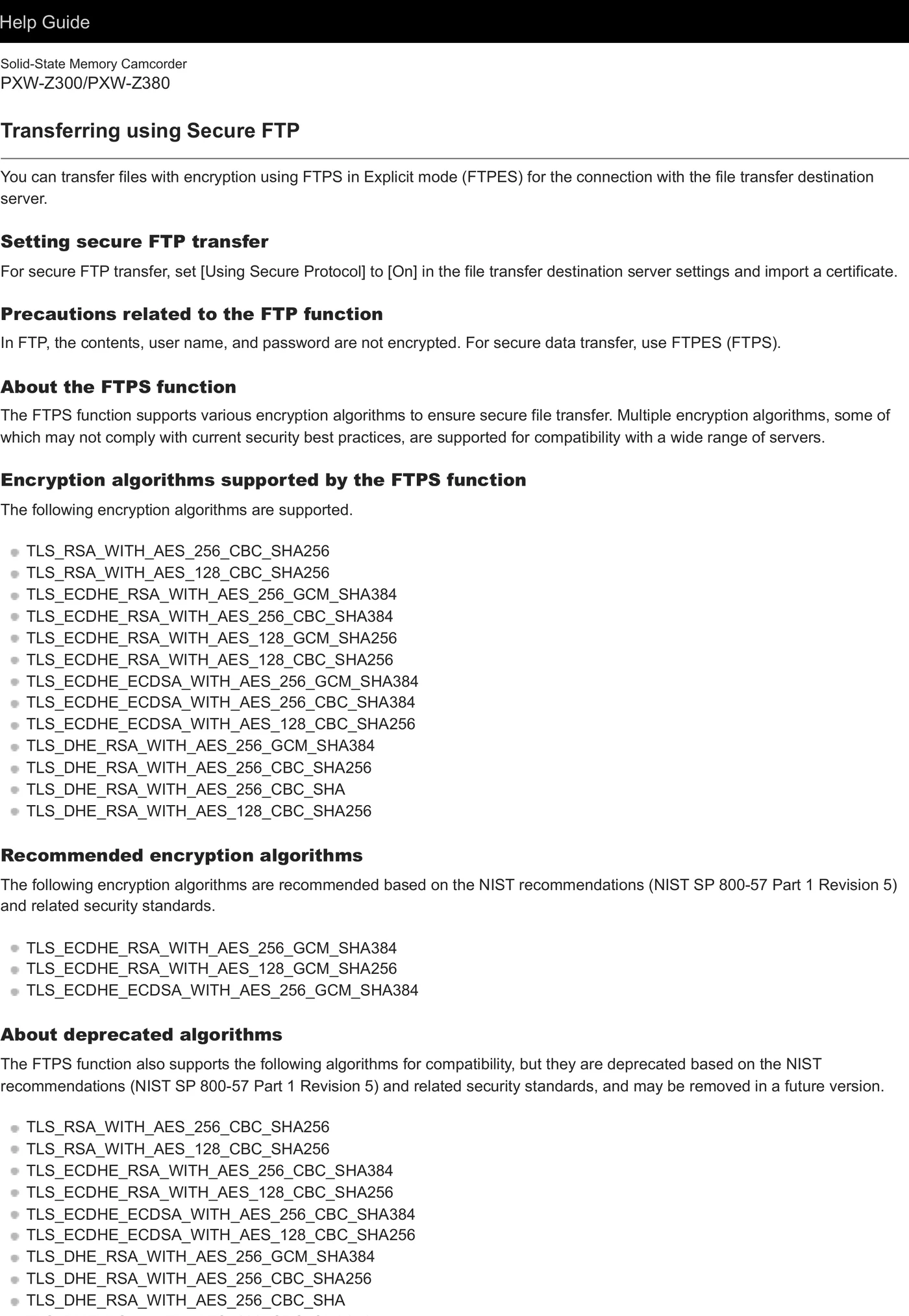
PXW-Z300 can initiate FTP, FTPES transfer of original clips, proxy clips, chunked proxy clips over Wi-Fi infrastructure/hotspot; wired Ethernet; USB tethering. The documented route accepts a user-configured server; it is suitable for a destination-neutral ingest gateway after protocol, firmware, and payload testing.
Menu path: Network → Connection > Network → File Transfer → Server Settings > File Transfer / Thumbnail → Transfer > Network → File Transfer → Auto Upload. Protocols: FTP · FTPES. Sends: original clips · proxy clips · chunked proxy clips.
Documented from the manufacturer manual. Sources reviewed .
TransportWi-Fi infrastructure/hotspot + wired Ethernet + USB tethering
Manual path: manual; auto original/proxy; chunked proxy while recording.
Automatic upload is available on this documented path.
Where chunked proxy upload is offered, treat it as a distinct mode from post-recording original-file upload.
Media behavior
Documented payload classes: original clips, proxy clips, chunked proxy clips.
Proxy, original/high-resolution, partial, and chunked transfers are separate choices where present; verify the selected type before the event.
Use the camera or adapter job/status list as the first completion signal, then verify the object at the destination.
Limits and warnings
Required path/hardware: none for built-in Wi-Fi and wired LAN; USB cable and phone/modem for tethering.
A product may also advertise a vendor-cloud workflow; this guide uses only the documented arbitrary-server path and does not treat vendor-cloud-only upload as interchangeable.
Feature names and background-transfer behavior vary by camera and adapter firmware.
Prove it on your body
Run this checklist on the exact body, firmware, network, and media format you will use on assignment.
Physical Camera to Anywhere interoperability is not yet lab-verified.
01Register one test server and make it the explicit destination.
02Upload a short proxy or small clip and confirm the transfer job reaches Completed.
03Open the received file and compare its size/duration with the source clip.
04Record which camera/adapter firmware, accessory, protocol, and port passed the test.
05If auto or chunk upload is enabled, record a short new clip and verify the expected original/proxy behavior.
If it will not send
01The File Transfer menu is missing or disabled.
Verify required firmware, option license, adapter attachment, recording state, and that the selected network mode permits file transfer.
02The server cannot be registered.
Confirm host syntax, protocol and port, DNS, passive/active mode, credentials, and the writable destination path.
03Secure FTP reports a certificate error.
Verify date/time, root CA import, server hostname, certificate chain, TLS compatibility, and revocation settings documented for the model.
04Proxy arrives but the original does not.
Check payload selection, auto-upload mode, recording codec/licence restrictions, media availability, and whether original transfer starts only after recording stops.
05A queued job repeatedly resumes or fails.
Check link stability, free storage, server timeout/size limits, adapter power, and camera job-list error text before retrying.
Sources
The local archive keeps this research reproducible if an official link changes. It is not redistributed through this site.
01
Official manufacturer PDF
Preparing to transfer files; Transferring clips automatically; Recording and uploading a proxy clip in chunks